Sign a Document
Signing in TrueSign is simple and intuitive.
Access an envelope that contains documents that require your signature by logging in to your TrueSign account.
- Launch TrueSign. The Home page is displayed.
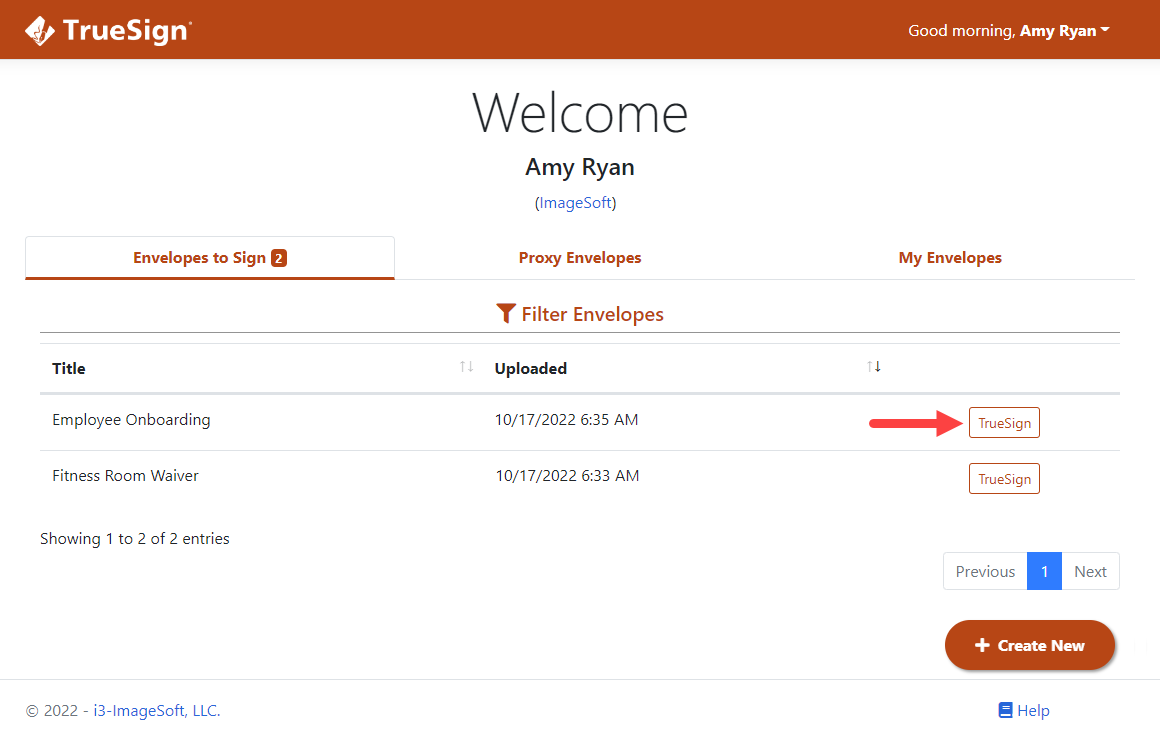
- Locate the appropriate envelope.
- Click the TrueSign button. The TrueSign Viewer is launched.
See Understanding the Signing Interface to learn more about the interface and its features.
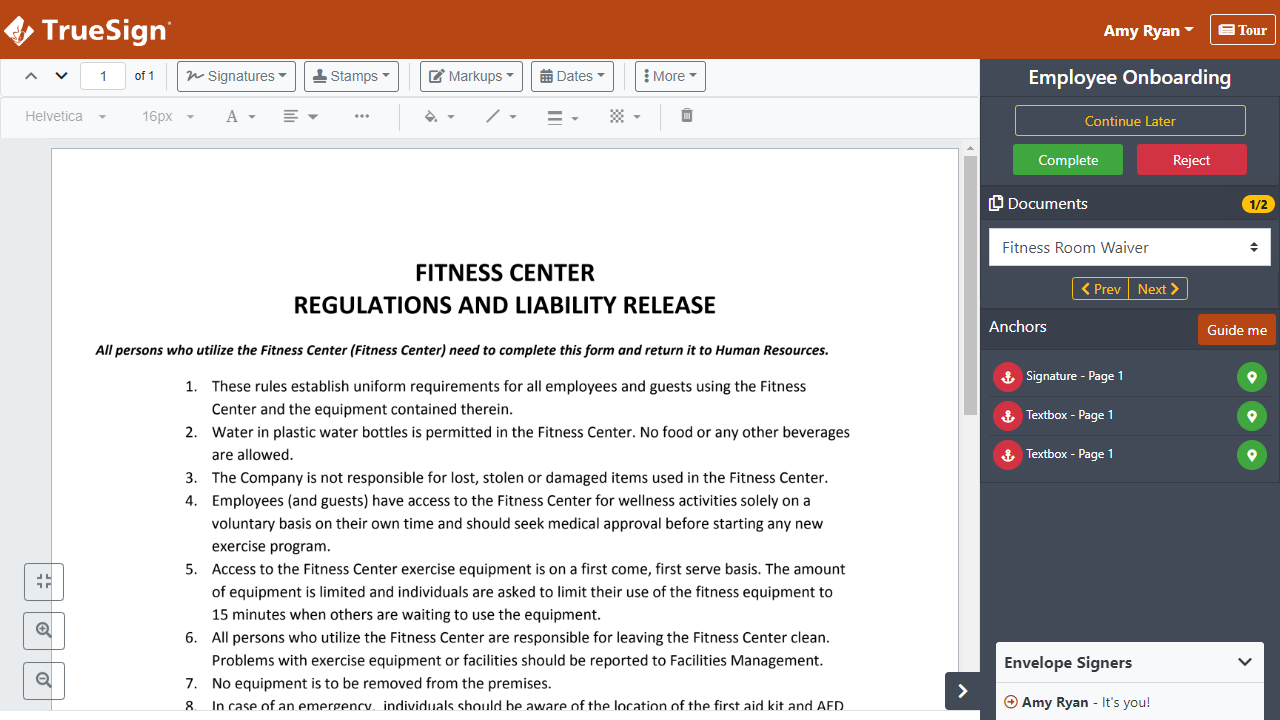
TrueSign provides a wizard to guide you through the signing process. See Guided Signing to learn more.
- Access the document to sign by selecting it in the Documents section in the right sidebar.
You can move between documents by selecting the Prev and Next buttons in the Documents section.
- Scroll to the signature location in the document. You can also select the green location icon in the Anchors section of the sidebar to quickly access a signature anchor.
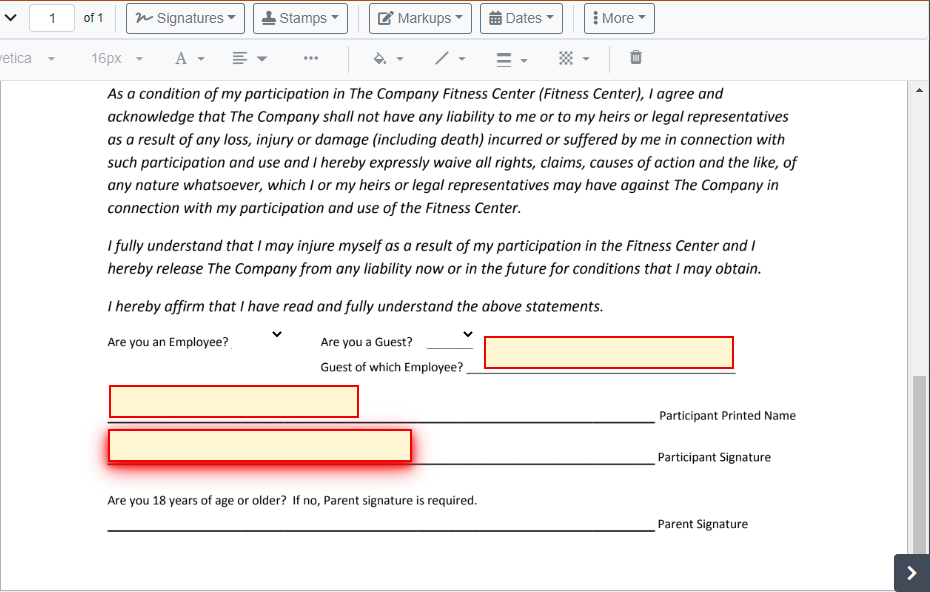
You can apply signatures, stamps, dates, and markups to the document.
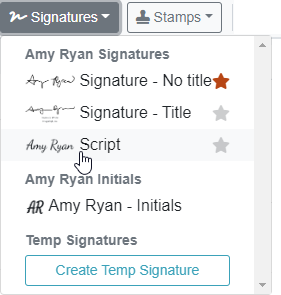
- Click the Signatures button to display a list of your saved signatures and initials. See Create your Signatures to learn how to create and manage your signatures.
You can create a temporary signature to use only for the documents in the current envelope. This signature is not saved for use on other envelopes. See Create a Temporary Signature for details.
- Select the signature to apply from the list.
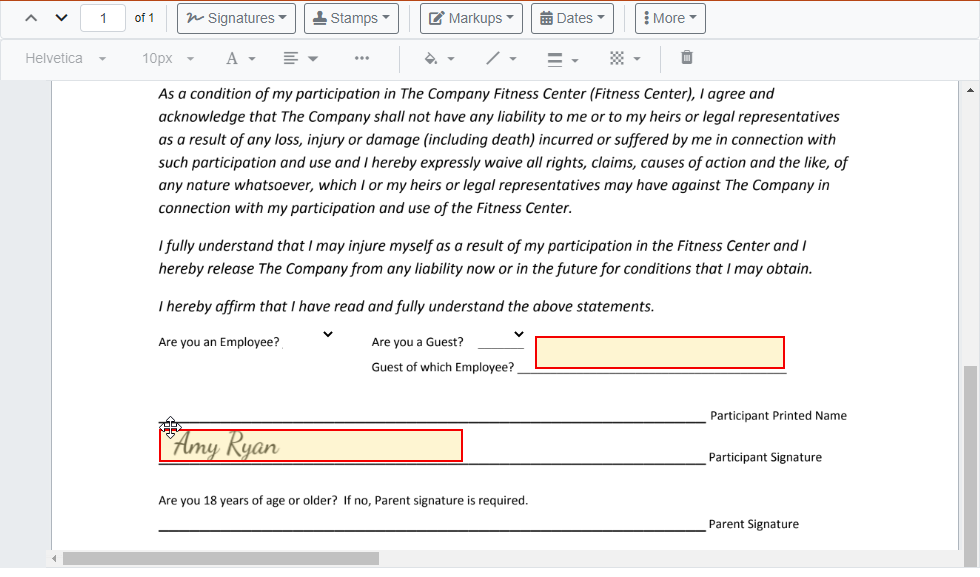
- Drag it to the signature anchor and click to set.

Once applied (but before the document is saved using the Continue Later option), you can:
Move the signature
- Select the signature and hover over it. The move pointer
 is displayed. The signature can be moved only when this pointer is visible.
 - Select the signature and drag it to the appropriate location.
- Click elsewhere on the document to release and set the signature.
Resize the signature
- Select the signature. Resizing handles display in each corner.
- Resize the signature as needed.
- Click elsewhere on the document to release and set the signature.
Remove the signature
- Select the signature.
- Right-click and select the Delete option in the pop-up menu displayed. The signature is removed.
Learn more