Apply the Date to a Document
You can affix the date to a document using a pre-defined format or use a custom date offset from a date. The date applied is based on when the document is saved.
- Launch TrueSign. The Home page is displayed.
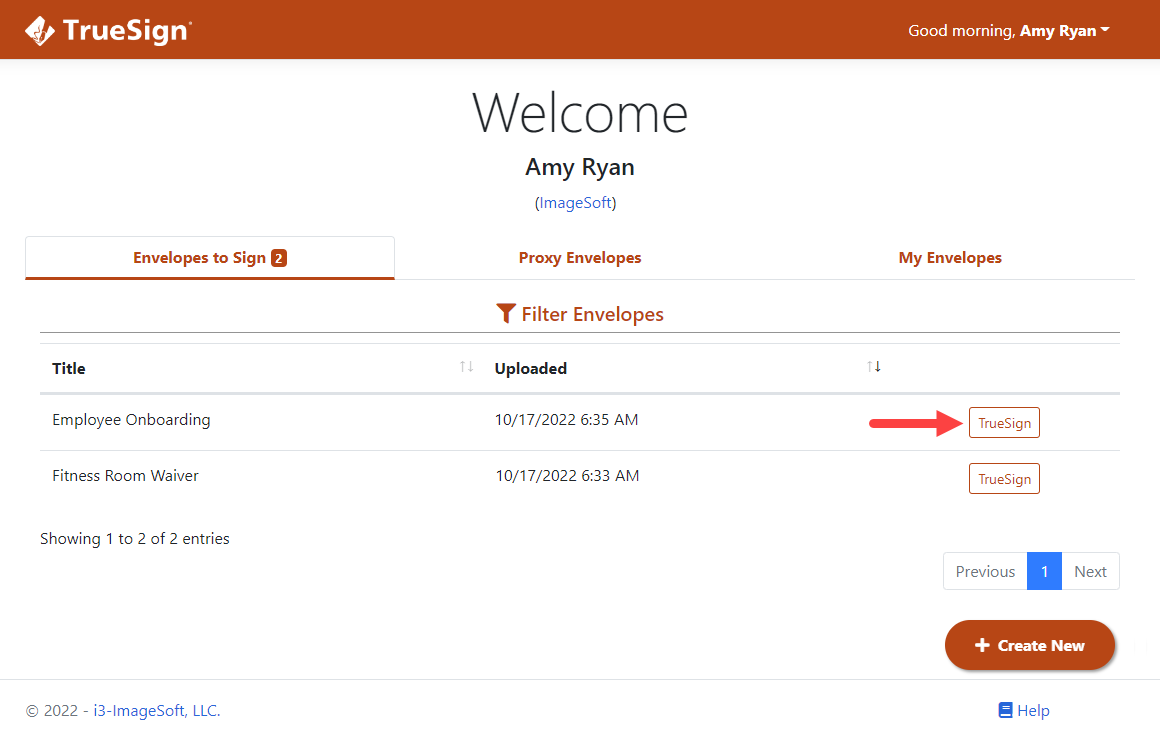
- Locate the appropriate envelope.
- Click the TrueSign button. The TrueSign Viewer is launched.
See Understanding the Signing Interface to learn more about the interface and its features.
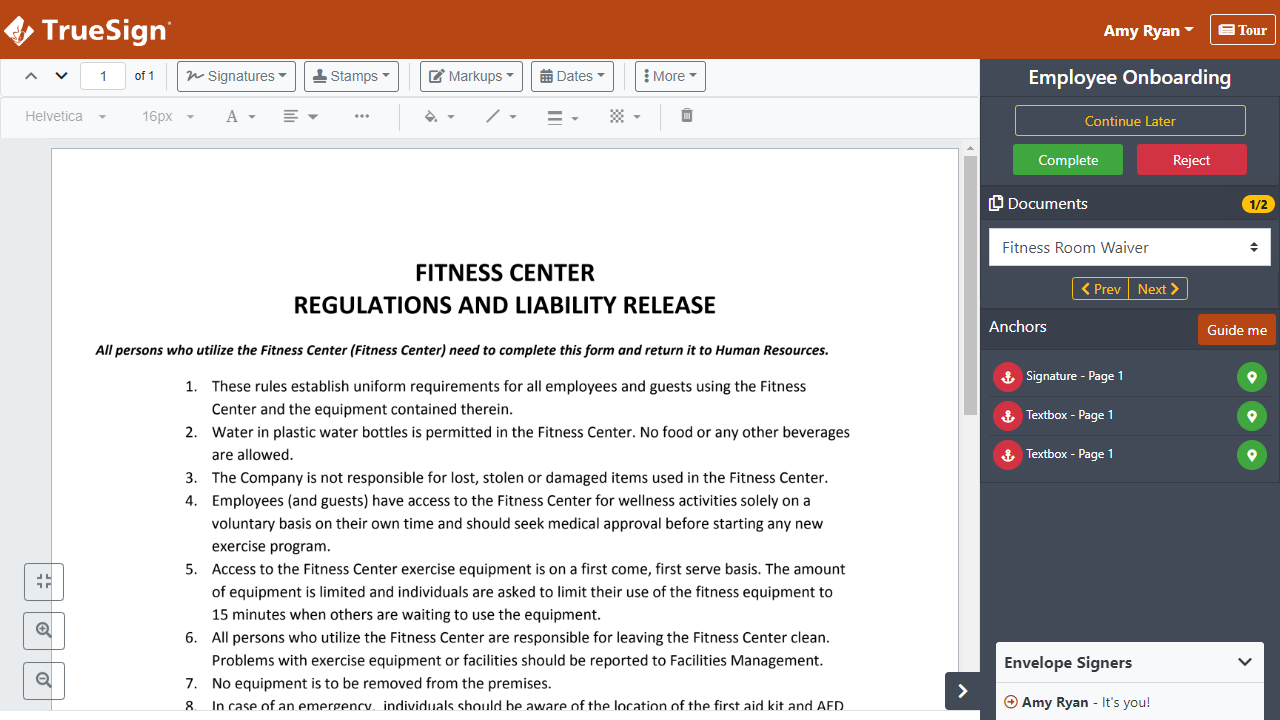
- Access the document to sign (if the envelope contains more than one document).
- Within the document, scroll to where you'll apply the date.
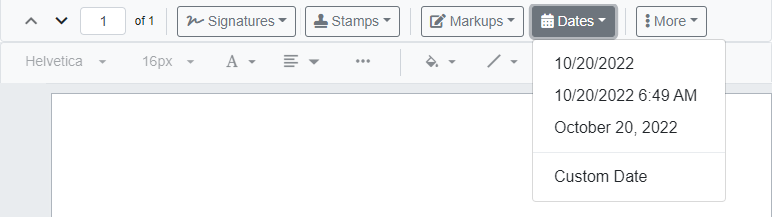
- Click the Dates button in the toolbar to display the date options.
- Select the desired date format. See Apply a Custom Date below for details on creating a custom date.
- Use your mouse (or your finger if using a touch display device) to position the date in the appropriate location on the document and click to set it.
Once applied (but before the document is saved using the Continue Later option), you can:
Move the date
- Select the date and hover over it. The move pointer
 is displayed. The date can be moved only when this pointer is visible.
 - Select the date and drag it to the appropriate location.
- Click elsewhere on the document to release and set the date.
Resize the date
- Select the date. Resizing handles display in each corner.
- Resize the date as needed.
- Click elsewhere on the document to release and set the date.
Remove the date
- Select the date.
- Right-click and select the Delete option in the pop-up menu displayed. The date is removed.
Apply a Custom Date
You can specify a date offset value to alter the date applied with the date stamp.
- In the TrueSign Viewer, click the Dates button in the toolbar.
- Select Custom Date in the drop-down list. This dialog is displayed.
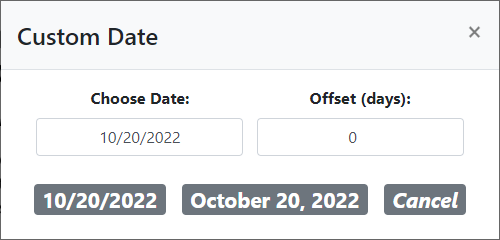
You'll specify the number of days to offset the current date.
To illustrate, if the current date is October 20, 2022, and you input an offset of 31 the date stamped on the document will be November 20, 2022.
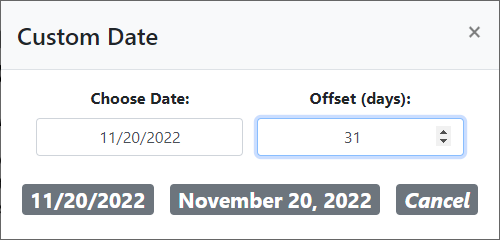
- Input or select (using the arrows) the Offset value to apply. Specify a negative value to apply a date in the past.
- Select the format to apply to the date. The dialog will close.
- Position your cursor (or use your finger if using a touch display device) in the appropriate location on the document and click to set the date.
You can move, resize, or delete the custom date as described in the previous section.