Additional Viewer Options
When signing documents in TrueSign, the document is displayed in the TrueSign Viewer.

In addition to applying a signature, stamp, or annotations, you can also:
Download the Document
- Select Download from the More navigation option. Depending on your default browser, the document may launch in a separate browser window. It can also be accessed through your Downloads folder.
Forward the Document's Envelope to another TrueSign User
- Select Forward from the More navigation option.
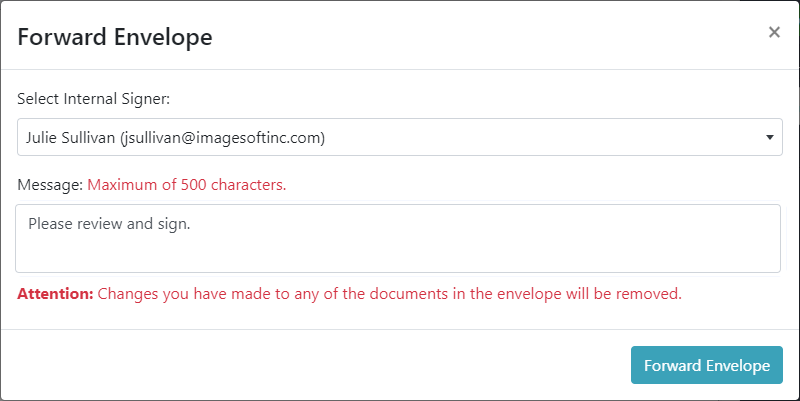
When you forward an envelope, it is transferred to the specified user. It's no longer accessible through the Envelopes to Sign tab on the Home page.
Also, as noted in the dialog, any changes you've made to the document (such as markups) will be removed from the forwarded envelope.
- Select the Internal Signer to whom the envelope will be forwarded.
- Input a message, if needed.
- Click Forward Envelope.
Specify the Viewer's Settings
You can configure these viewer settings to apply to the Viewer:
- The font size, font color, background color, and outline color that will be applied by default when a text markup is placed on a document. See Apply a Markup to a Document.
- The background color and outline color that will be applied by default when a drawing object markup is placed on a document. See Apply a Markup to a Document.
- The font size that will be applied by default when a date stamp is placed on a document. See Apply the Date to a Document for details.
- The sort method applied to the stamps listed in the Stamps button on the Viewer. See Apply a Stamp to a Document for details.
- Indicate if the PDF document thumbnails should be shown or hidden in the Viewer.
- Indicate the maximum size (in px) allowed for a signature.
To configure:
- Select Viewer Settings from the More navigation option on the Viewer.
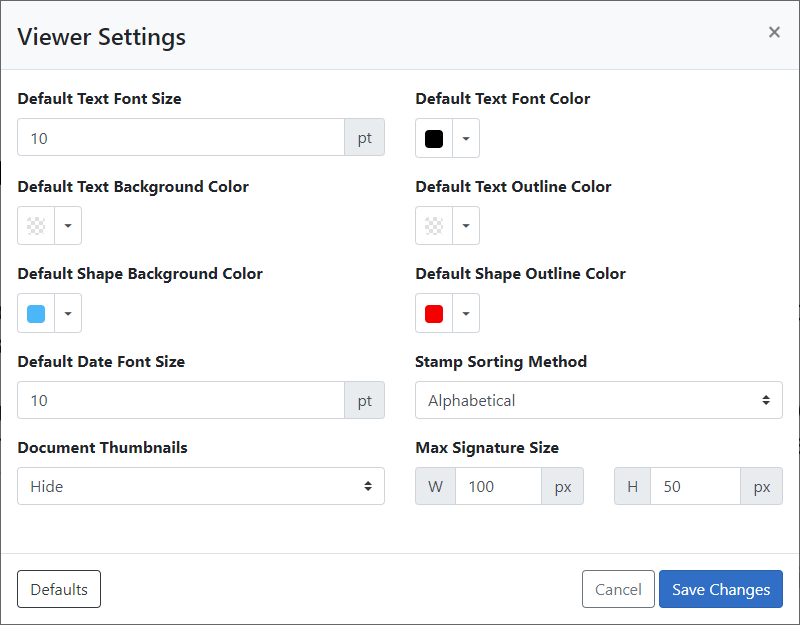
- Change any of these settings as needed.
To change color (using the Shape Background Color to illustrate):
- Click the field arrow.
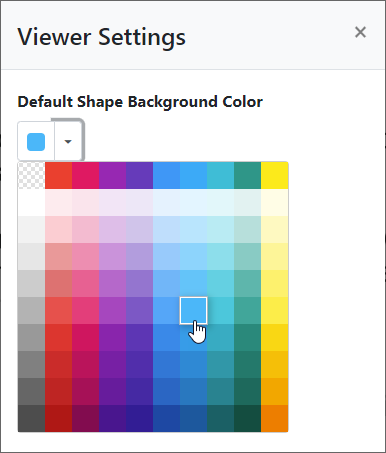
- Click in the color table to specify your desired color.
- Click Save Changes to save the settings updates.
Click the Defaults button to return the settings to their default values.