Apply a Markup to a Document
You can apply a markup - such as text, checkmark, or geometric shape - to a document.
A markup object will display over the document. Signatures and stamps can display atop a markup.
When you complete the envelope, a markup can no longer be edited.
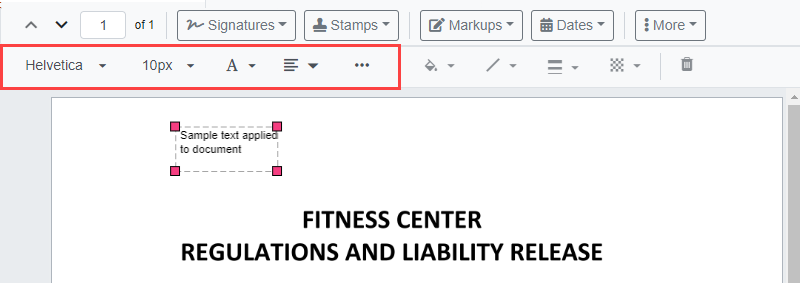
Text markup
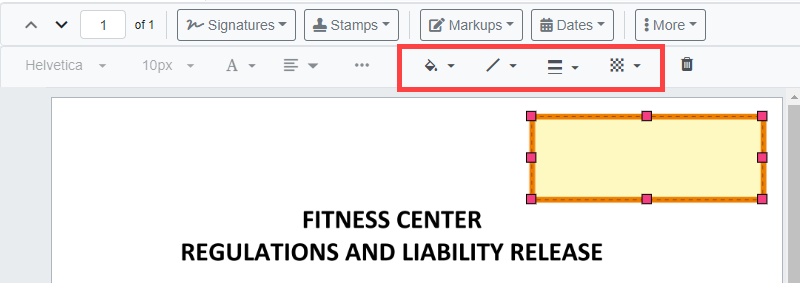
Drawing object markup
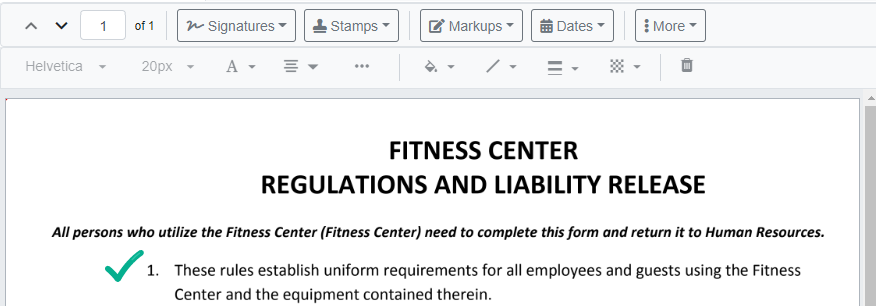
Checkmark
To apply a markup on a document:
- Launch TrueSign. The Home page is displayed.
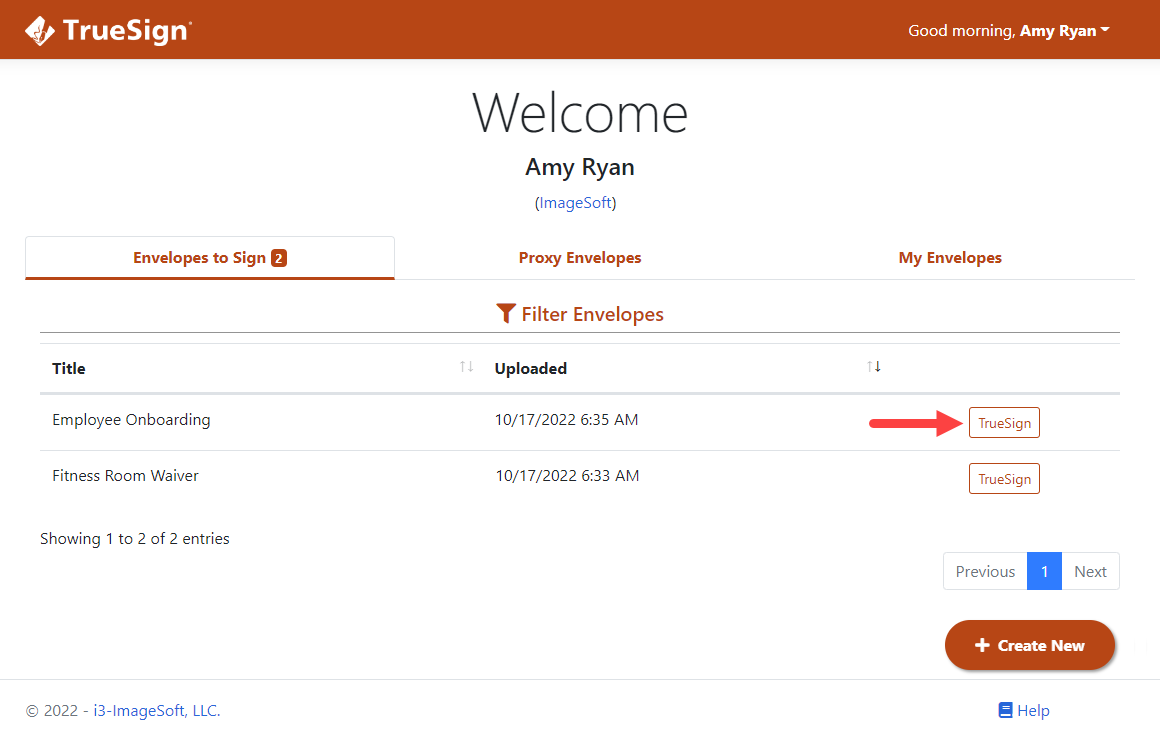
- Locate the appropriate envelope.
- Click the TrueSign button. The TrueSign Viewer is launched.
See Understanding the Signing Interface to learn more about the interface and its features.
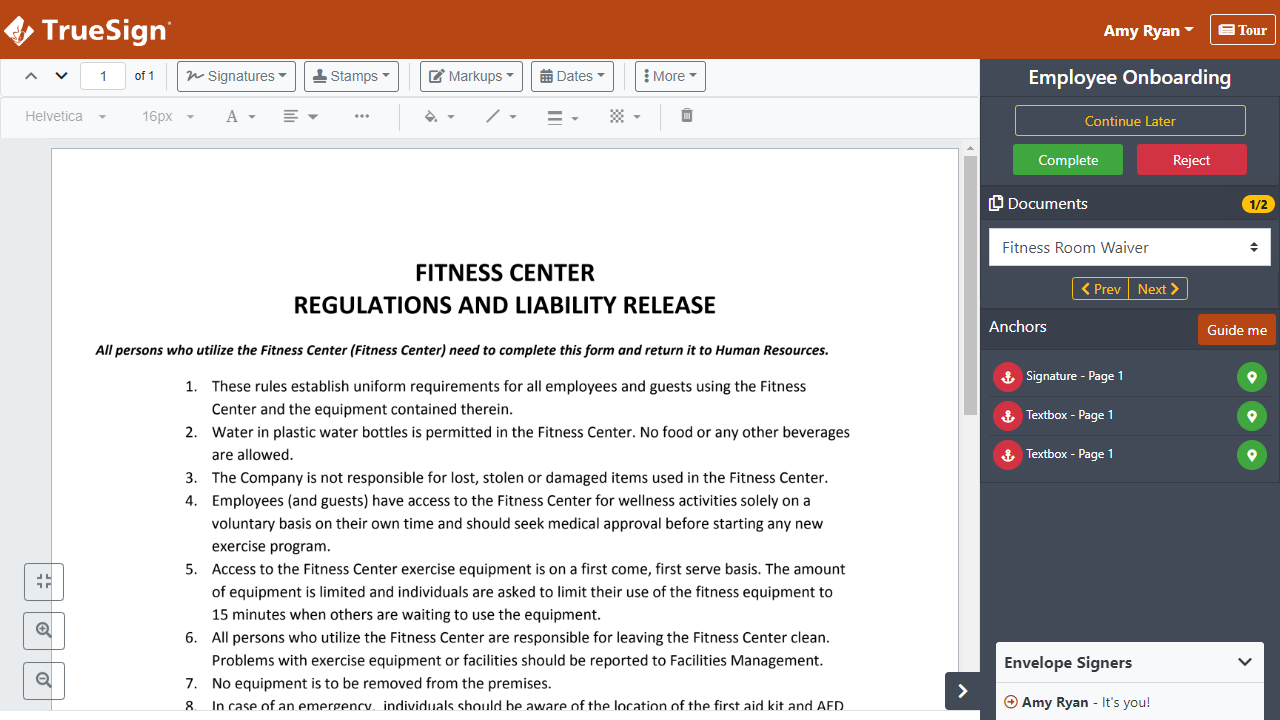
- Access the document to sign (if the envelope contains more than one document).
- Within the document, scroll to where you'll apply the markup.
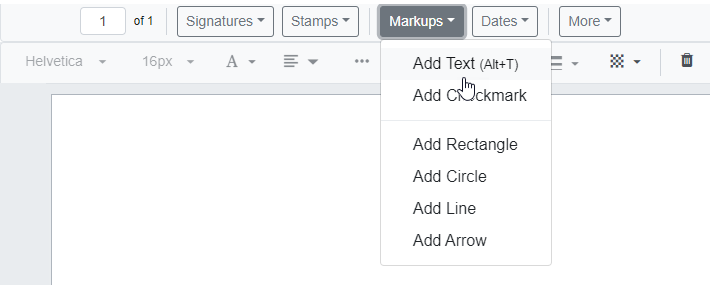
- Click the Markups button and select the type to apply from the list presented.
- Use your mouse (or your finger if using a touch display device) to position the markup in the appropriate location on the document and click to set it.