Apply a Stamp to a Document
Your access to stamps is controlled by a TrueSign Administrator. Contact your administrator if you need access to a stamp.
To apply a stamp to a document:
- Launch TrueSign. The Home page is displayed.
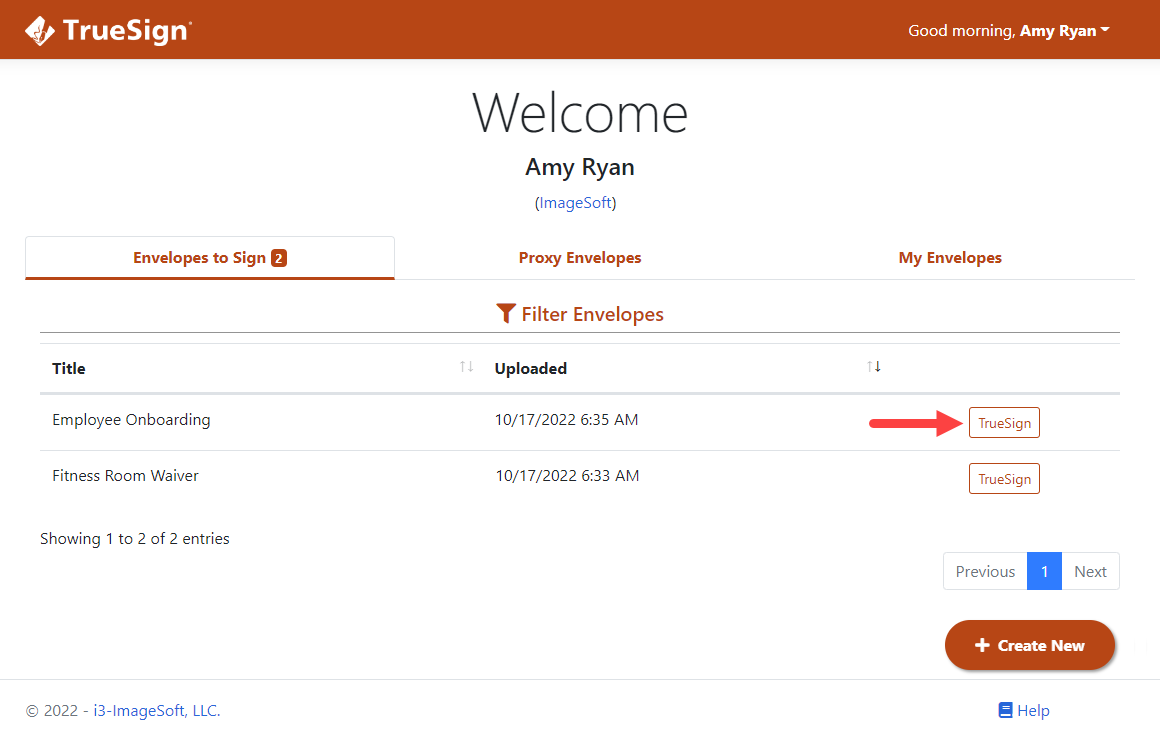
- Locate the appropriate envelope.
- Click the TrueSign button. The TrueSign Viewer is launched.
See Understanding the Signing Interface to learn more about the interface and its features.
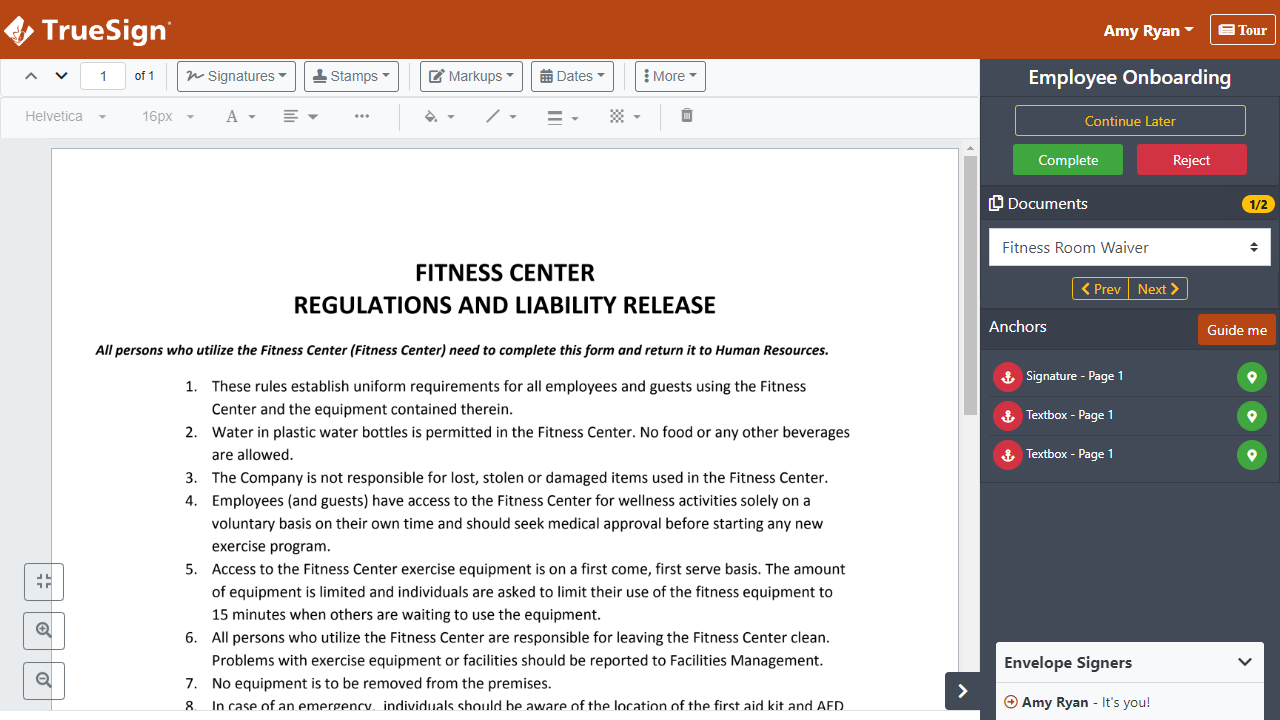
- Access the document to sign (if the envelope contains more than one document).
- Within the document, scroll to where you'll apply the stamp.
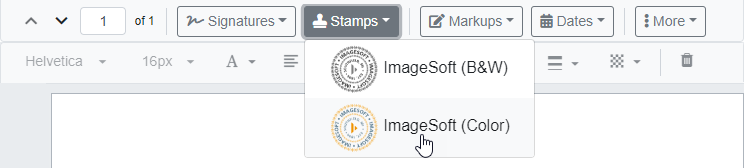
- Click the Stamps button in the toolbar to display the stamps available to you.
- Select the stamp to apply.
- Use your mouse (or your finger if using a touch display device) to position the stamp in the appropriate location on the document and click to set it.
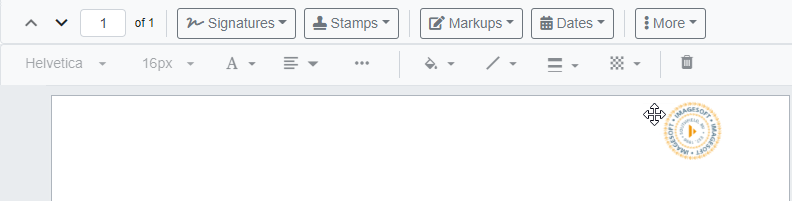
Once applied (but before the document is saved using the Continue Later option), you can:
Move the stamp
- Select the stamp and hover over it. The move pointer
 is displayed. The stamp can be moved only when this pointer is visible.
 - Select the stamp and drag it to the appropriate location.
- Click elsewhere on the document to release and set the stamp.
Resize the stamp
- Select the stamp. Resizing handles display in each corner.
- Resize the stamp as needed.
- Click elsewhere on the document to release and set the stamp.
Remove the stamp
- Select the stamp.
- Right-click and select the Delete option in the pop-up menu displayed. The stamp is removed.