Create a Temporary Signature
You can create a temporary signature while in the TrueSign Viewer. This signature can be used to sign documents in the current envelope; however, it's not saved for future envelopes. See Sign a Document for details on applying a signature to a document in an envelope.
- Scroll to the signature location in the document. You can also select the green location icon in the Anchors section of the sidebar to quickly access a signature anchor.
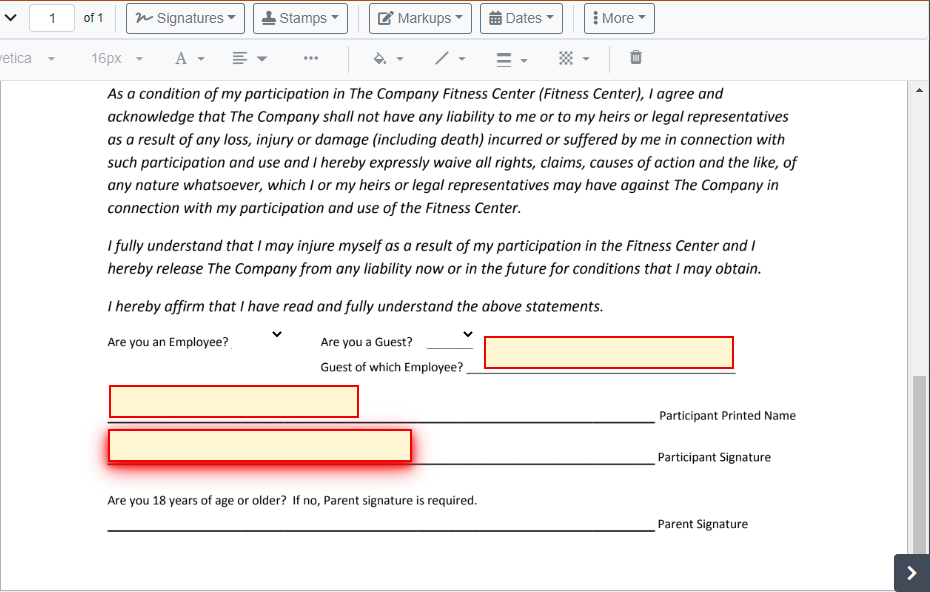
- Click the Signatures button and click Create Temp Signature. The Create Temp Signature page is launched.
Use one of these methods to create your temporary signature.
Finger / Mouse
When launched, the Create Temp Signature page defaults to this option.
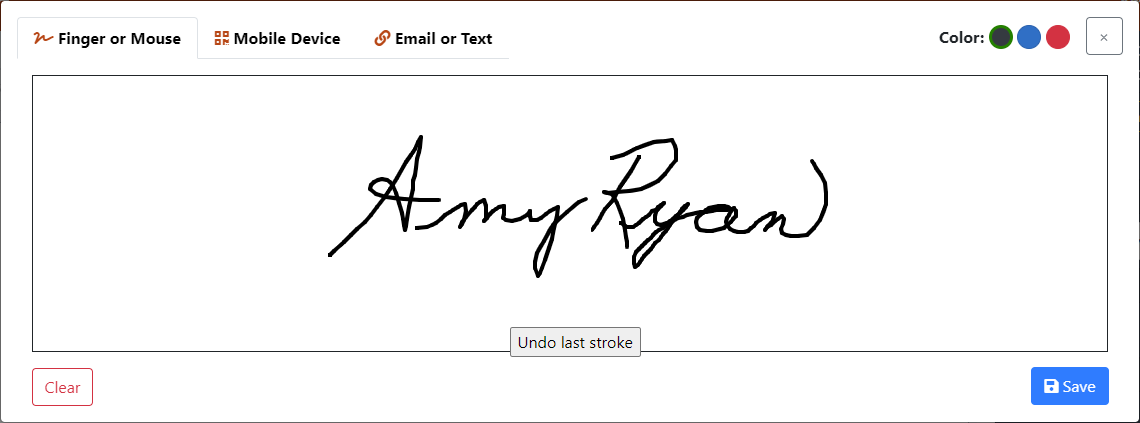
- Select the color to apply to your signature.
- Use your finger (on a touch screen) or mouse to draw your signature.
- Click Clear or Undo last stroke to try again.
- Click Save. Your signature is displayed on the Preview page.
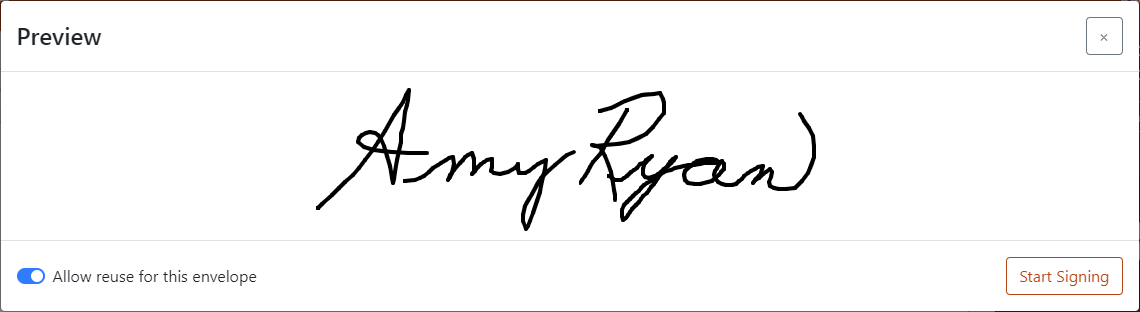
- Select the toggle to allow this signature to be used for other documents in the envelope.
- Click Start Signing.
Focus is returned to the TrueSign Viewer. Your signature is previewed as you move your cursor over the document.
- Drag your signature to the appropriate location and click to set it.
You can resize, move, or delete your signature once it's placed on the document.
Mobile Device
When launched, the Create Temp Signature page defaults to Finger or Mouse.
- Select the Mobile Device tab on the Capture Signature page.
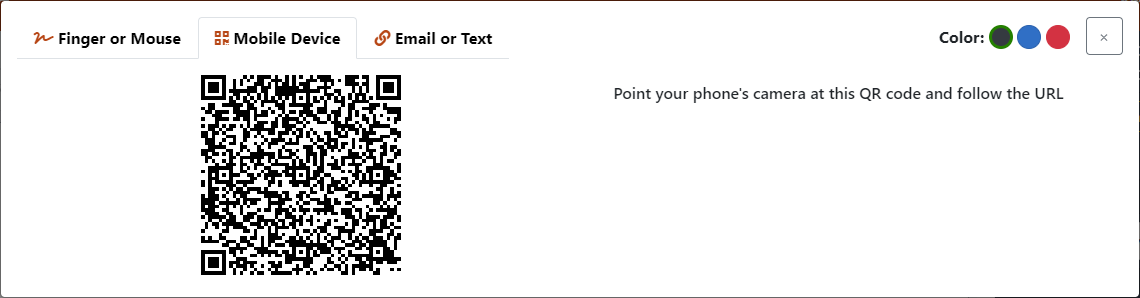
- Open the camera on your mobile device and select the rear-facing option.
- Position your device to display the QR code. The TrueSign web address notification is displayed.
- Tap the notification to open the link.
The Capture Signature page on the TrueSign app is launched on your device.
- Use your device to draw your signature.
- Click Clear or Undo last stroke to try again.
- Click Save Signature.
You're notified your signature has been captured.
Your signature is previewed in the in the TrueSign app.
- Select the toggle to allow this signature to be used for other documents in the envelope, if needed.
- Click Start Signing.
Focus is returned to the TrueSign Viewer. Your signature is previewed as you move your cursor over the document.
- Drag your signature to the appropriate location and click to set it.
You can resize, move, or delete your signature once it's placed on the document.
Email or Text
You can have the TrueSign web address sent to you via email or text.
Text
When launched, the Create Temp Signature page defaults to Finger or Mouse.
- Select the Email or Text tab on the Create Temp Signature page.
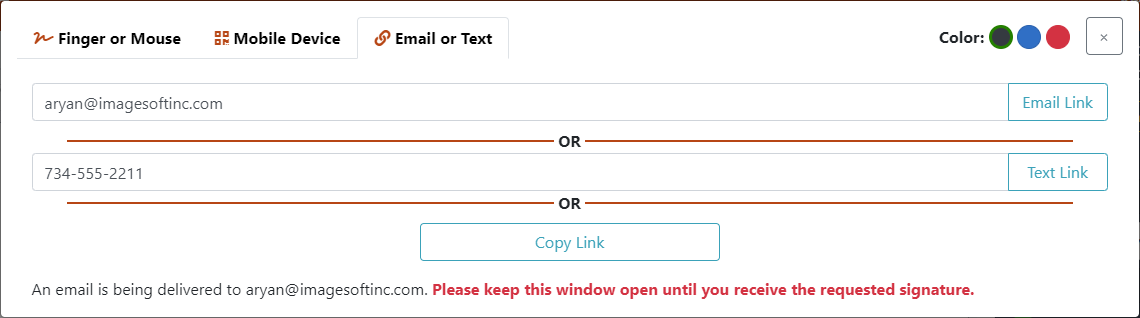
- Input your phone number and click Text Link.
A text is sent to the number provided. It contains a link to the TrueSign web address.
- Open the text message.
- Click the link. The Capture Signature page on the TrueSign app is launched on your device.
- Use your device to draw your signature.
- Click Clear or Undo last stroke to try again.
- Click Save Signature.
You're notified your signature has been captured.
Your signature is previewed in the in the TrueSign app.
- Select the toggle to allow this signature to be used for other documents in the envelope, if needed.
- Click Start Signing.
Focus is returned to the TrueSign Viewer. Your signature is previewed as you move your cursor over the document.
- Drag your signature to the appropriate location and click to set it.
You can resize, move, or delete your signature once it's placed on the document.
When launched, the Create Temp Signature page defaults to Finger or Mouse.
- Select the Email or Text tab on the Create Temp Signature page.
- Confirm the email listed in correct or input a different email.
- Click Email Link.
An email containing a signature link is sent to the specified address.
- Click the Create Signature button in the email message. You can also access the link listed in the email.
The Capture Signature page is launched in a separate tab / window.
- Draw your signature.
- Click Clear or Undo last stroke to try again.
- Click Save Signature.
You're notified your signature has been captured.
Your signature is previewed in the in the TrueSign app.
- Select the toggle to allow this signature to be used for other documents in the envelope, if needed.
- Click Start Signing.
Focus is returned to the TrueSign Viewer. Your signature is previewed as you move your cursor over the document.
- Drag your signature to the appropriate location and click to set it.
You can resize, move, or delete your signature once it's placed on the document.
Copy the Link
You can also access the web address using a browser.
- Click the Copy Link button to copy the web address to your clipboard.
- Open a browser, paste the address, and press Enter.
The Capture Signature page is launched.
- Draw your signature.
- Click Clear or Undo last stroke to try again.
- Click Save Signature.
You're notified your signature has been captured.
Your signature is previewed in the in the TrueSign app.
- Select the toggle to allow this signature to be used for other documents in the envelope, if needed.
- Click Start Signing.
Focus is returned to the TrueSign Viewer. Your signature is previewed as you move your cursor over the document.
- Drag your signature to the appropriate location and click to set it.
You can resize, move, or delete your signature once it's placed on the document.