Inside TrueSign
Once you have been invited to TrueSign and have finished setting up your ImageSoft Identity account, you may access TrueSign! Head over to TrueSign.com and click on the "Login" button; or you can go directly to app.truesign.com. If you have not been authenticated recently or your browser's cache have been cleared, you will be redirected to the ImageSoft Identity site to sign in. If you do not have an account, please read the Getting Started section.
Home Page
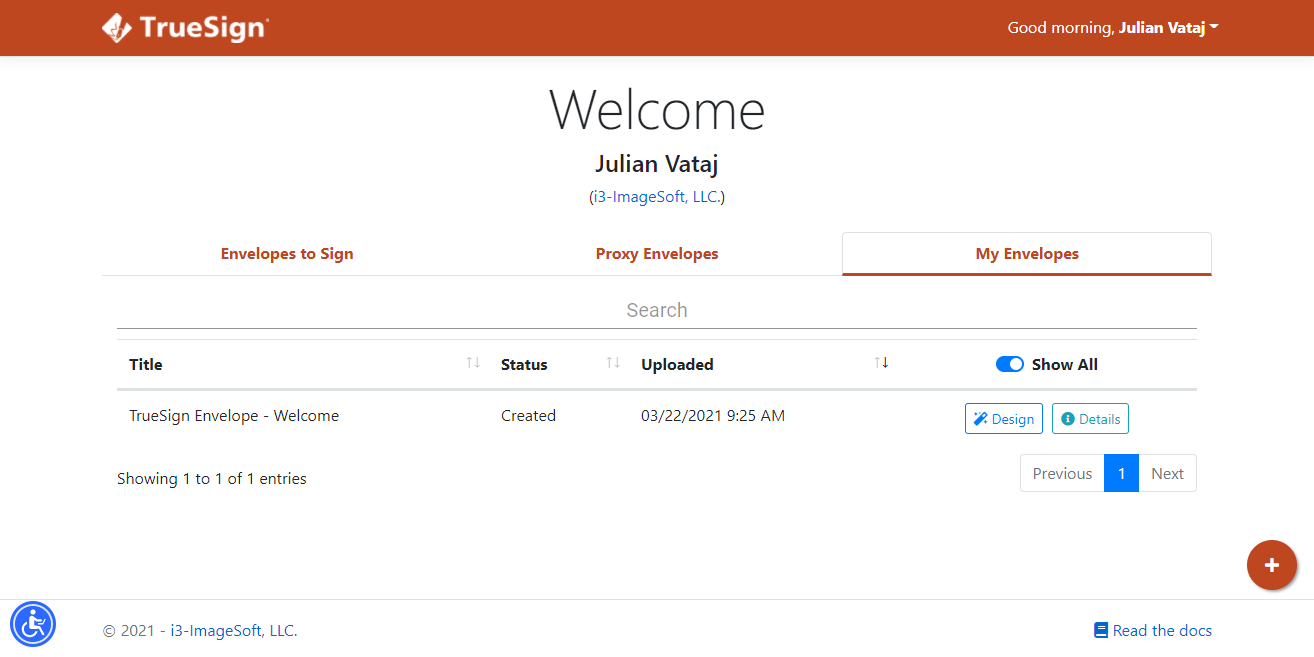
The TrueSign home page is the place where you will find all the envelopes that you have been requested to sign or have access to sign; and all the envelopes you have created or you are a designer for. This page contains three tabs:
- Envelopes to Sign: This tab contains all the envelopes uploaded in the TrueSign application for you to sign as primary signer.
- Proxy Envelopes: This tab contains a list of envelopes where other users of your organization are primary signers for, but you are a proxy signer for those users, and can sign them on their behalf.
- My Envelopes: This tab contains all envelopes that have been created by you in the TrueSign app or where you are a designer for. By default, only envelopes in a Created or Ready to Sign status are showed, but you can check the "Show All" toggle to also see completed envelopes. You can click "Details" to see more details for the envelope. If the envelope is in a "Created" status, you will also see a "Design" option.
Navigation Menu
In the top-right corner of this page, you will find your full name and a drop-down menu. This is the TrueSign navigation menu with links to other pages that you have access to:
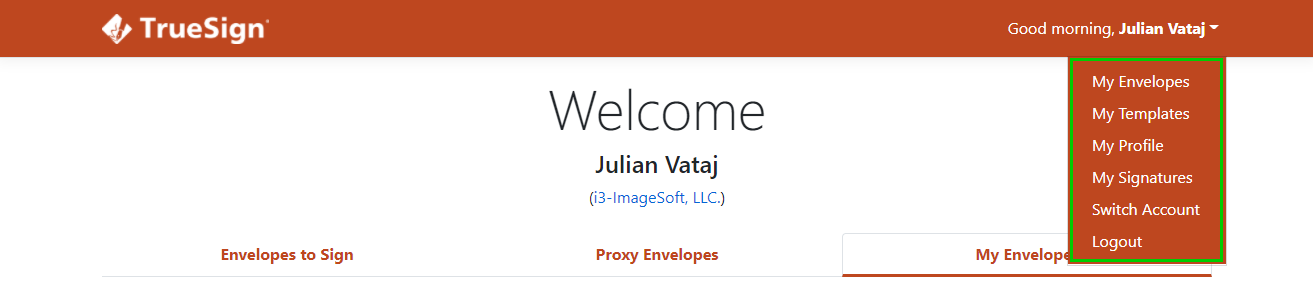
Note: If you belong to multiple accounts, you'll see an additional option, called "Switch Account".
My Profile
The My Profile page is the place where you can update your user information but also set your notification preferences.
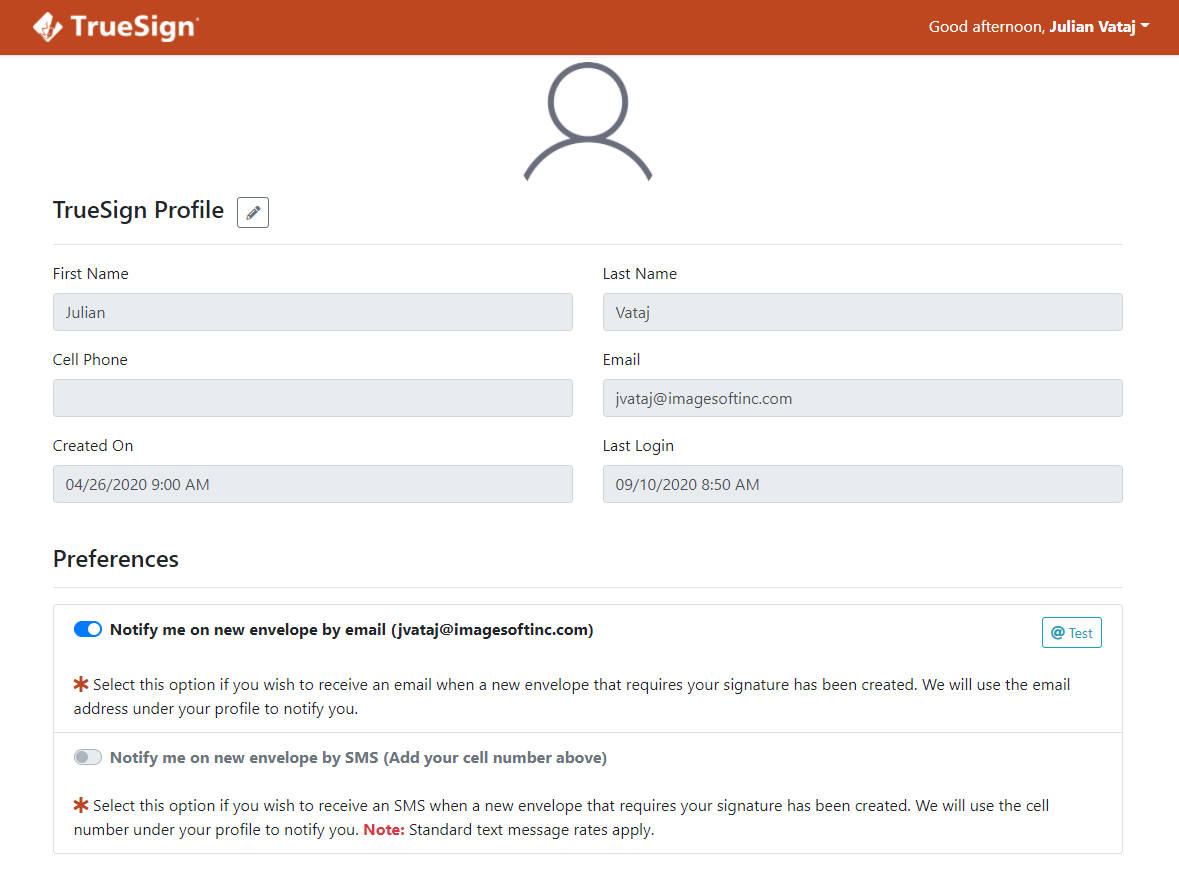
To receive an email notification when a new envelope has been uploaded for you to sign, check the option "Notify me on new envelope by email". When selected, you will receive an email notification with a link to an envelope to be signed by you. You may verify that the emails reach you by clicking the "Test" button to the right of this option.
To receive a text message (SMS) when a new envelope has been uploaded for you to sign, check the option "Notify me on new envelope by SMS". When selected, you will receive an SMS notification with a link to an envelope to be signed by you. This option is available only if you have provided and verified your cell phone number in your profile. You may verify that the SMS reaches you by clicking the "Test" button to the right of this option.

TrueSign also allows a user to set up reminders for envelopes that are waiting for them to sign. The user can choose their own schedule on when these reminders are sent. The user will receive an email with a list of envelopes that are waiting for them to sign. If no envelopes are waiting in TrueSign, then no email is sent to the user.
Note: Preferences are only applied to the connected account. When the user belongs to multiple accounts, the user needs to change the preferences for each account they belong to.
My Signatures
See Create your Signatures for details on creating your TrueSign signature library.
See Manage Proxy Signers for details on granting other TrueSign users permission to sign on your behalf.
See Create a Temporary Signature for details on creating a signature for use only on documents in the open envelope.
See Manage your Signatures and Initials for details on editing and deleting signatures and initials.
Creating Envelopes
If your Admin has given you rights to create envelopes from the TrueSign home page, you will see a (+) Create New button on the lower-right position of the page. Once clicked, the following options are presented:
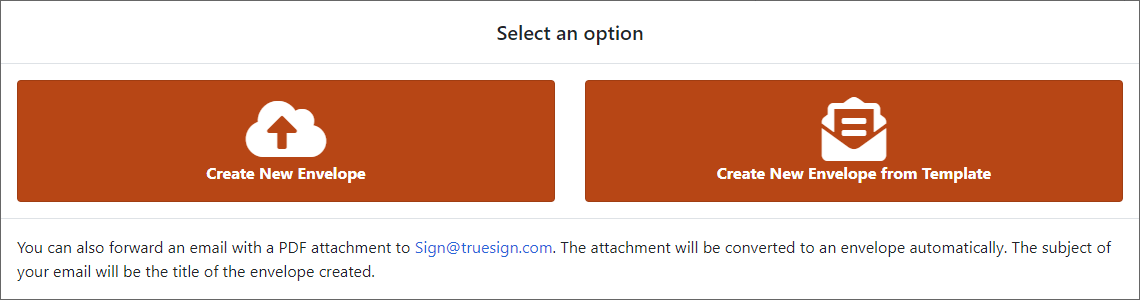
Create a New Envelope
This control will allow you to upload up to 10 PDF/Word/Tiff documents at a time into a new envelope:
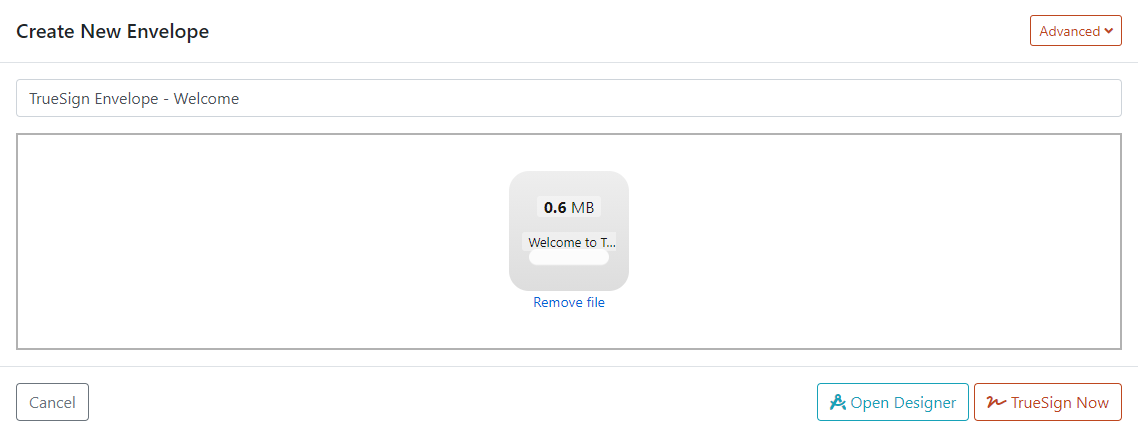
Once you have uploaded all the PDF/Word/Tiff documents, select if you want to Open Designer or TrueSign Now:
- Open Designer: if this option is selected, the new envelope will open up in the TrueSign Designer for you to prepare it for signing. This option will allow you to add more documents to the envelope, add signers, add anchors, et al. Read more about the TrueSign Designer here.
- TrueSign Now: if this option is selected, the new envelope will open up in the signing interface for you to sign. Read more about the TrueSign signing interface here.
Create a New Envelope from a Template
If you have created a template or someone has shared a template with you, you can create a new envelope based on that template. Select a template from the list, and TrueSign will automatically list the configured signers:
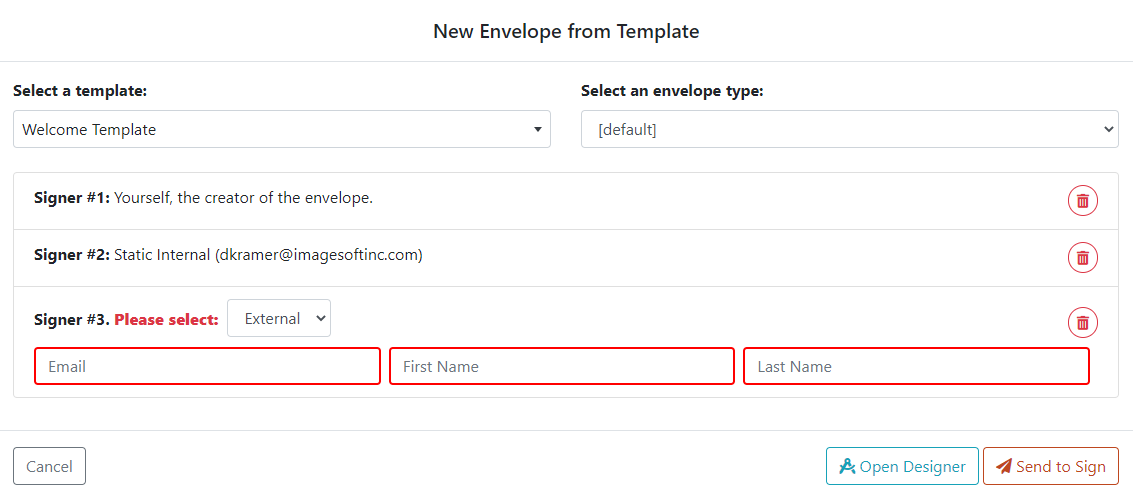
Once you have edited the signers for this envelope, select if you want to Open Designer or Send to Sign:
- Open Designer: if this option is selected, the new envelope will open up in the TrueSign Designer for you to prepare it for signing. This option will allow you to add more documents to the envelope, add signers, add anchors, et al. Read more about the TrueSign Designer here.
- Send to Sign: if this option is selected, the new envelope will be sent to all the configured signers for their signature.
Email to Sign@TrueSign.com
Another way to create envelopes is via email. You can send or forward an email containing PDF attachments you intend to sign to sign@truesign.com, where the subject of the email will be the new envelope's title. If you have been given the right to use this feature by your TrueSign admins and your email contains valid PDF documents, then you will receive a reply from TrueSign:
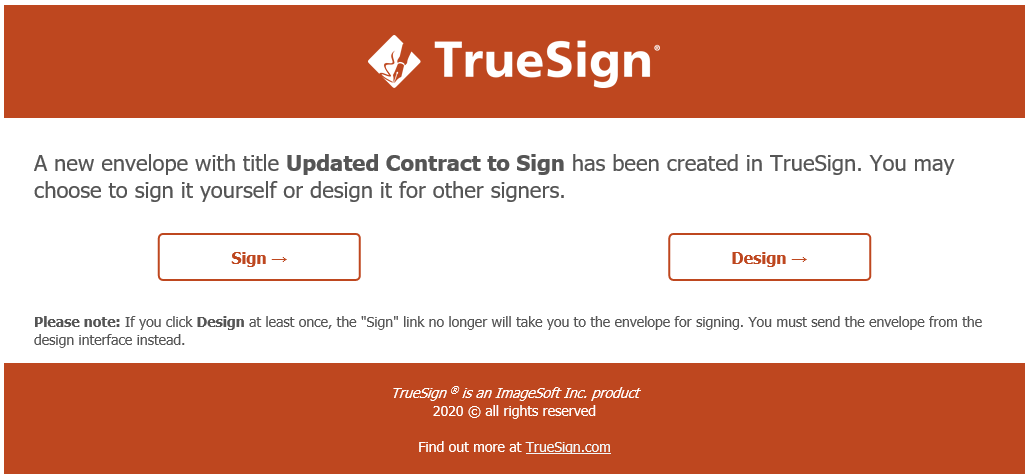
The email contains two links to the new envelope:
- Sign: Click this link if you intend to sign the new envelope yourself.
- Design: Click this link if you intend to open the new envelope in the TrueSign Designer and prepare it for other people to sign it.
Note: Once the "Design" link is clicked, the envelope will be set to a "Created" status for you to design. Any subsequent clicks to the "Sign" link will result into a "Envelope Not Found" error, until the envelope gets sent via the Designer.