Guided Signing
TrueSign provides a wizard to guide you through the signing process.
- Launch TrueSign. The Home page is displayed.
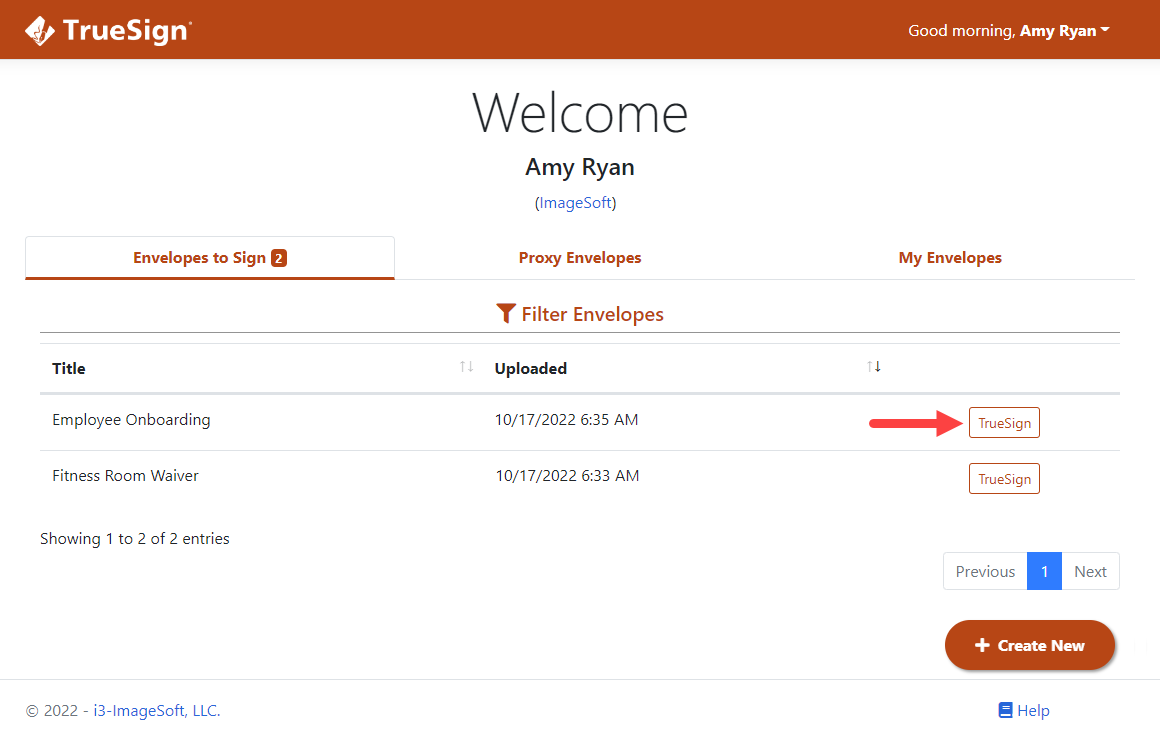
- Locate the appropriate envelope.
- Click the TrueSign button. The TrueSign Viewer is launched.
See Understanding the Signing Interface to learn more about the interface and its features.
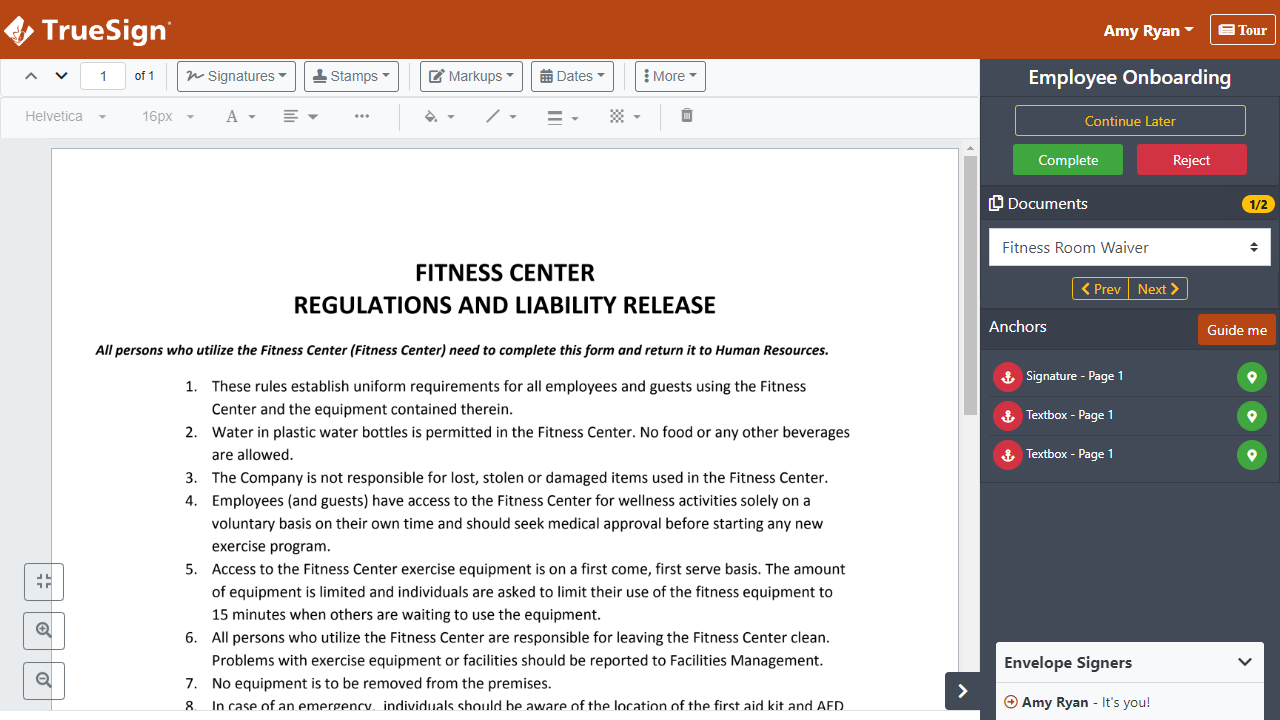
- Access the document to sign by selecting it in the Documents section in the right sidebar.
You can move between documents by selecting the Prev and Next buttons in the Documents section.
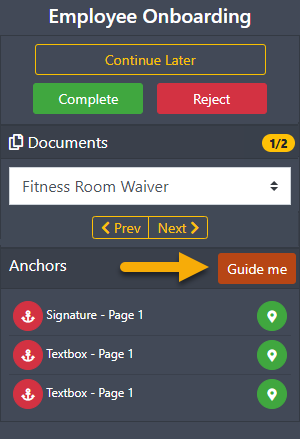
- Click the Guide me button to launch the signing wizard.
Focus is directed to the first anchor.
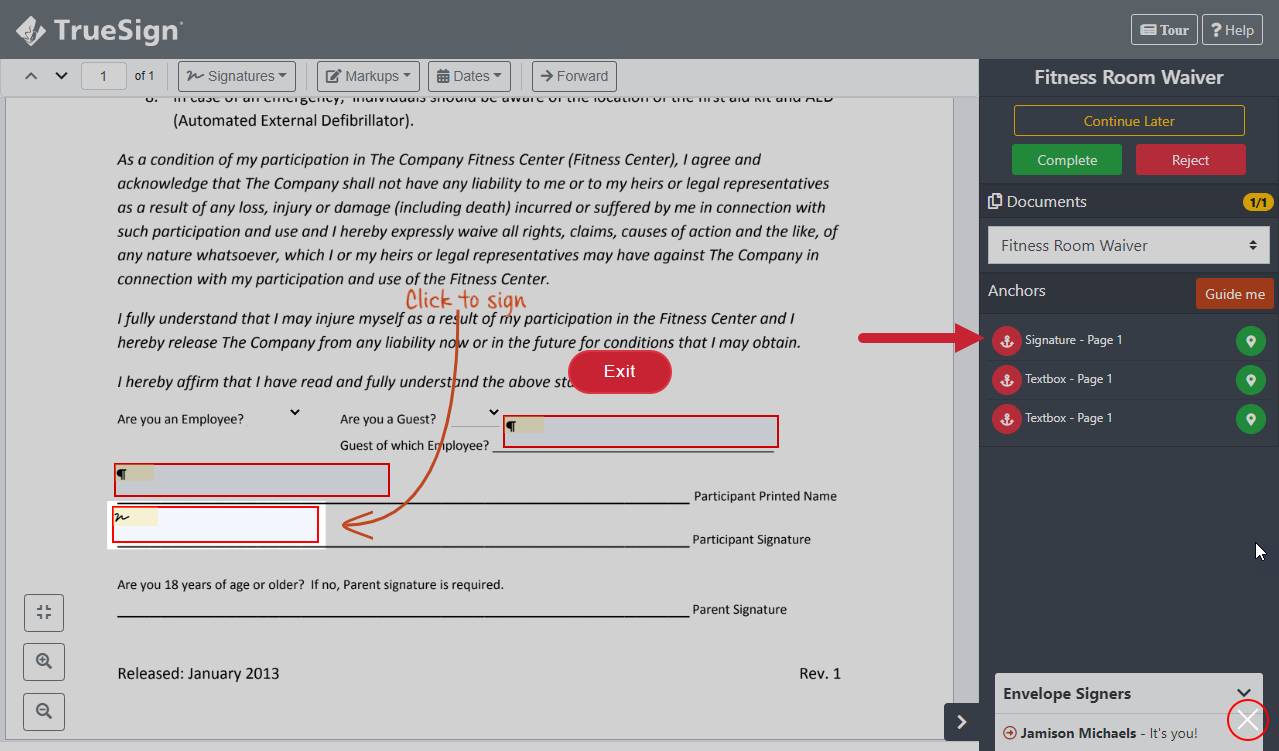
The instructional text shown is based on the anchor type; for example, a signature anchor instruction is Click to sign.
- Based on the anchor type, complete the first anchor.
For a Signature anchor, when you click it:
- If you have saved signatures in TrueSign, your favorite signature is automatically applied.
- If you have no saved signatures, the Capture Signature page is displayed. You can choose which method to use for signing - Type, Finger / Mouse, Mobile Device, or Email / Text. See Capture your Signature and Create a Temporary Signature to learn more on each signing method.
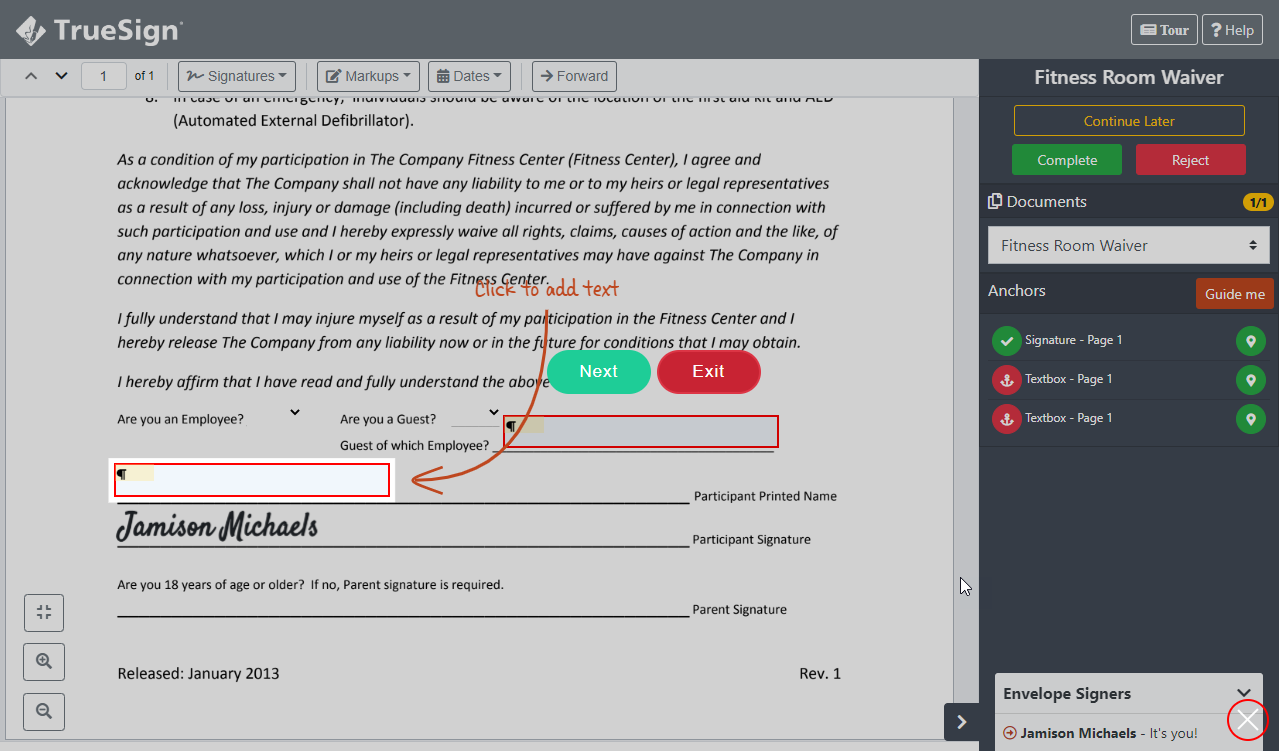
- Click Next to move to the next anchor. You can click Exit to leave guided signing.
- Continue through all anchors.