Capture your Signature
To create your signature library, you can capture your signature using any method described below. Once a signature is created, it is available in the Signatures drop-down list on the TrueSign Viewer. See Sign a Document for details.
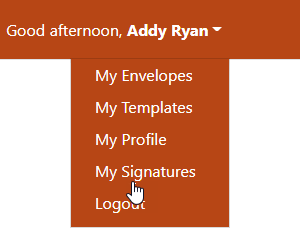
- On the Home page, select My Signatures from the navigation menu. The My Signatures page is displayed.
- Click the Create New Signature button. The Signature Editor page is displayed.
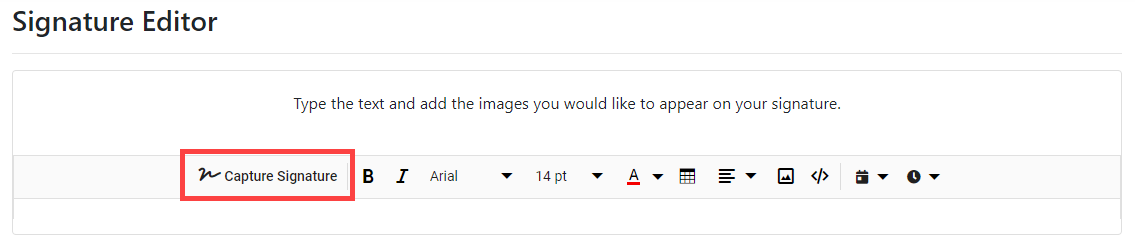
- Click Capture Signature.
TrueSign provides three methods to capture your signature. Each is detailed here.
Type
When first launched, the Capture Signature page defaults to Type.
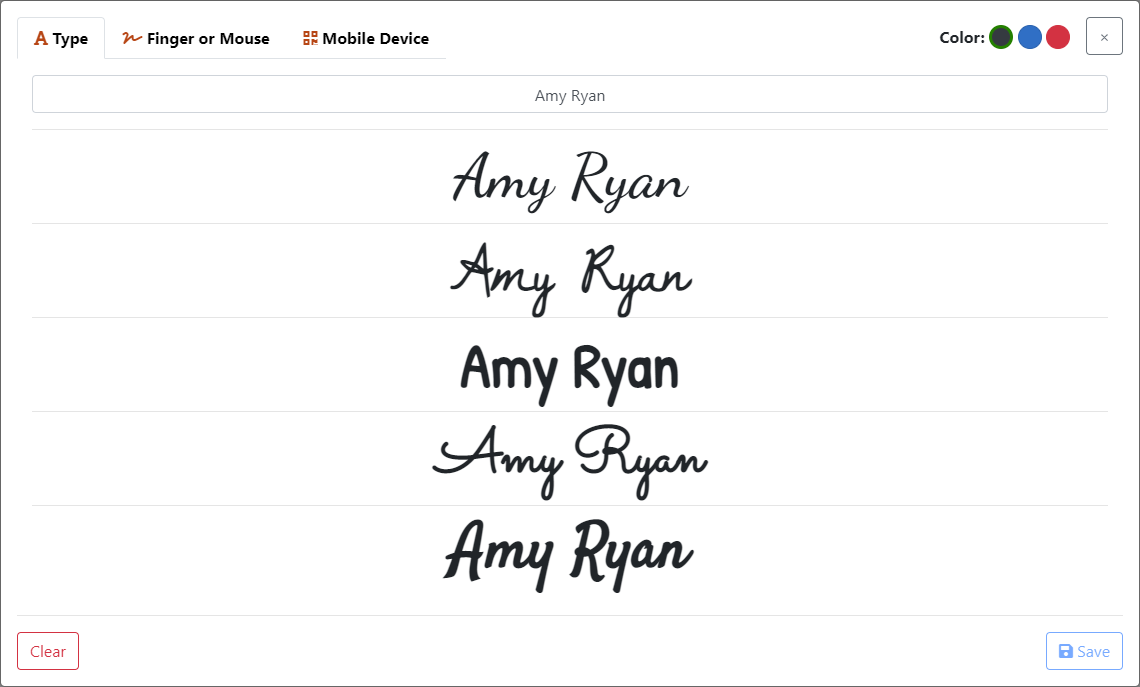
Your name defaults to what's specified through your profile.
- Edit your name as you want it to appear in the signature, if required.
- Select the text color.
- Select the text style.
- Click Save. Your selected signature is displayed on the Signature Editor page.
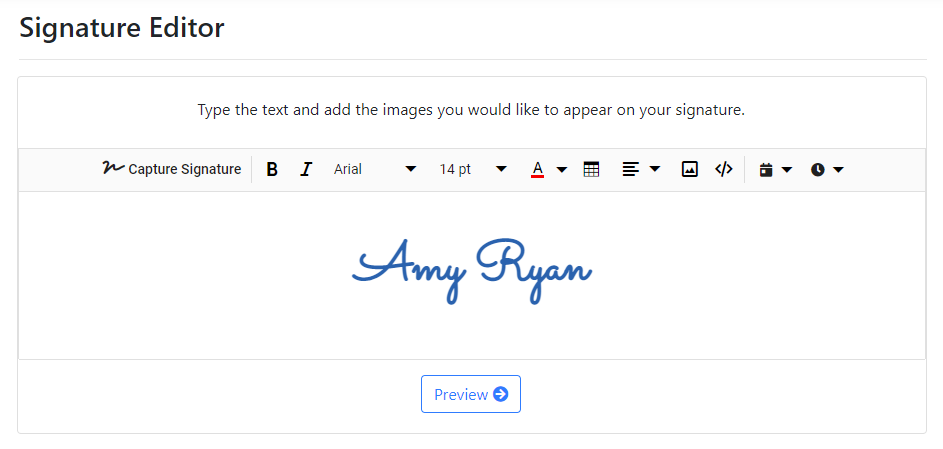
You can modify your signature by adding text, a table, an image, a date stamp, and a time stamp. See Enhance your Signature for details.
You can also replace, delete, realign, and resize the signature. See Edit a Signature for details.
- Once the signature image is configured, click the Preview button on the Signature Editor page.
Your signature, as it will appear once it's saved, is displayed.
If needed, click Edit to make any updates.
- Add a Nickname to easily identify the signature (optional).
- Click Save Signature.
Finger / Mouse
When first launched, the Capture Signature page defaults to Type.
- Select the Finger or Mouse tab.
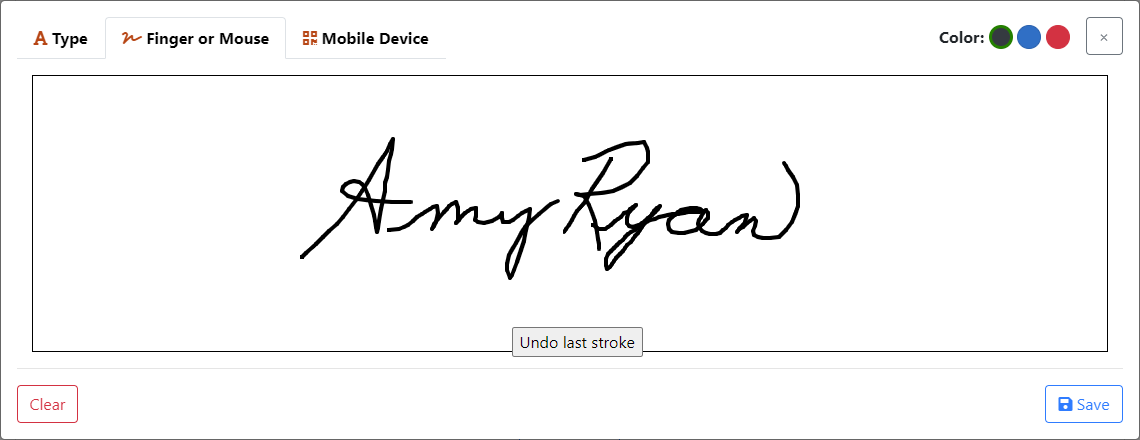
- Select the color to apply to your signature.
- Use your finger (on a touch screen) or mouse to draw your signature.
- Click Clear or Undo last stroke to try again.
- Click Save. Your signature is displayed on the Signature Editor page.
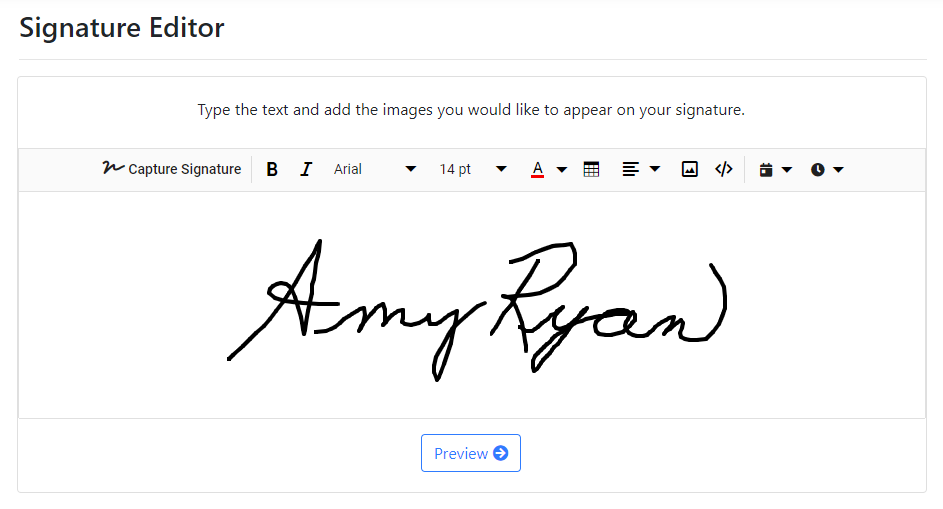
You can modify your signature by adding text, a table, an image, a date stamp, and a time stamp. See Enhance your Signature for details.
You can also replace, delete, realign, and resize the signature. See Edit a Signature for details.
- Once the signature image is configured, click the Preview button on the Signature Editor page.
Your signature, as it will appear once it's saved, is displayed.
If needed, click Edit to make any updates.
- Add a Nickname to easily identify the signature (optional).
- Click Save Signature.
Mobile Device
You can use your mobile device to capture your signature.
When first launched, the Capture Signature page defaults to Type.
- Open your camera on your mobile device and select the rear-facing option.
- Select the Mobile Device tab on the Capture Signature page.
- Position your device to display the QR code. The TrueSign web address notification is displayed.
- Tap the notification to open the link.
The Capture Signature page on the TrueSign app is launched on your device.
- Use your device to draw your signature.
- Click Clear or Undo last stroke to try again.
- Click Save Signature.