Enhance your Signature
You can enhance your signature by adding text, a table, an image, a dynamic date, or a dynamic time.
See Create your Signatures for details on creating your signature.
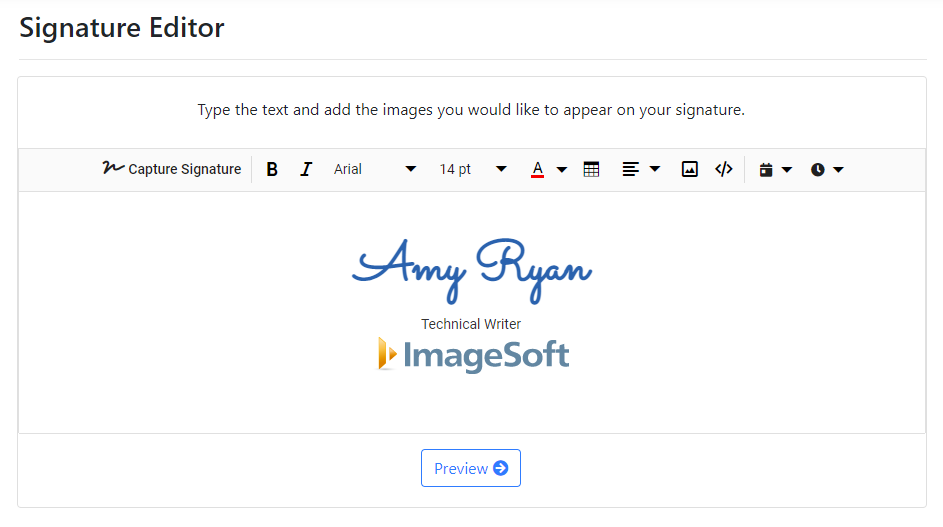
Add Text
You can add text, such as a job title to your signature.
In the Signature Editor:
- Position your cursor in the Signature Editor. You may need to add a line above or below your signature.
- Input your text.
You can select the text and then format it by specifying the font type, style, color, and size.

Add an Image
You can add an image - such as a corporate logo - to your signature.
In the Signature Editor:
- Position your cursor in the Signature Editor. You may need to add a line above or below your signature.

- Click the Image icon. The Edit Image dialog is displayed.
- Drop the image file to upload or click Browse so you can navigate to and select the image.
You can also specify a link from the web.
- Click Insert on the Edit Image dialog.
Add a Dynamic Date / Time
You can add the date or time to the signature. When the signature is saved, the current date / time is applied.
- Position your cursor in the Signature Editor. You may need to add a line above or below your signature.

- Click the Date or Time icon.
- Select the desired format from the list presented.
Add a Table
To add a table to your signature:
- Position your cursor in the Signature Editor. You may need to add a line above or below your signature.
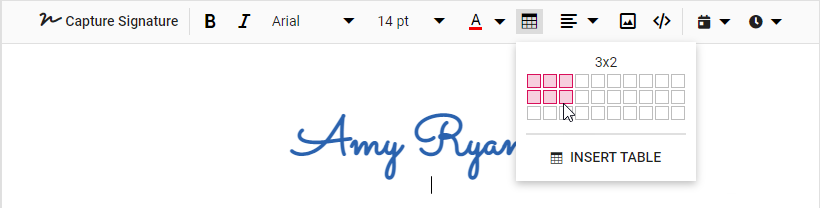
- Click the Table icon and select the desired table structure.
- Click Insert Table.
The table is added to the signature.
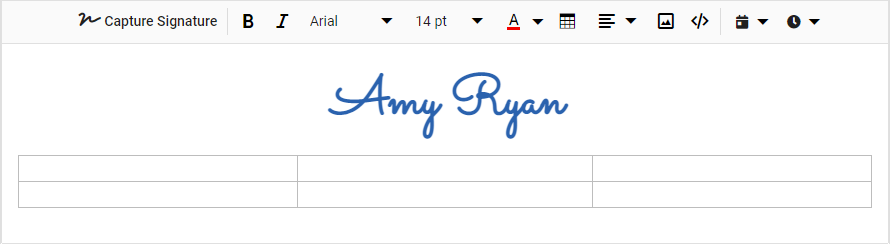
- Add data to the table as required.
Align Signature Elements
You can align your signature, text, and images as required.
- Select the signature component.
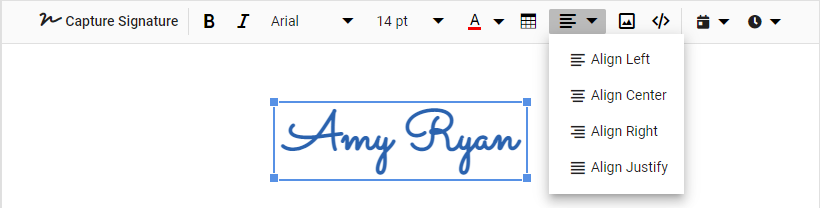
- Click the Alignment icon and select the desired alignment from the list presented.