Manage Document Anchors
TrueSign can be enabled to allow auto anchors. These anchors are created by including specific replacement text in the PDF file before it is uploaded to TrueSign and added to an envelope. See Configure Auto Anchors.
You can manage the anchors you've applied to the document. You can, for example, require the signer to complete an anchor.
First, access Designer.
- Launch TrueSign. The Home page is displayed.
- Click the My Envelopes tab. Existing envelopes are listed.
- Locate the envelope to configure.
- Click the Design button.
The Designer interface is launched. The right sidebar lists the anchors that exist on the document.
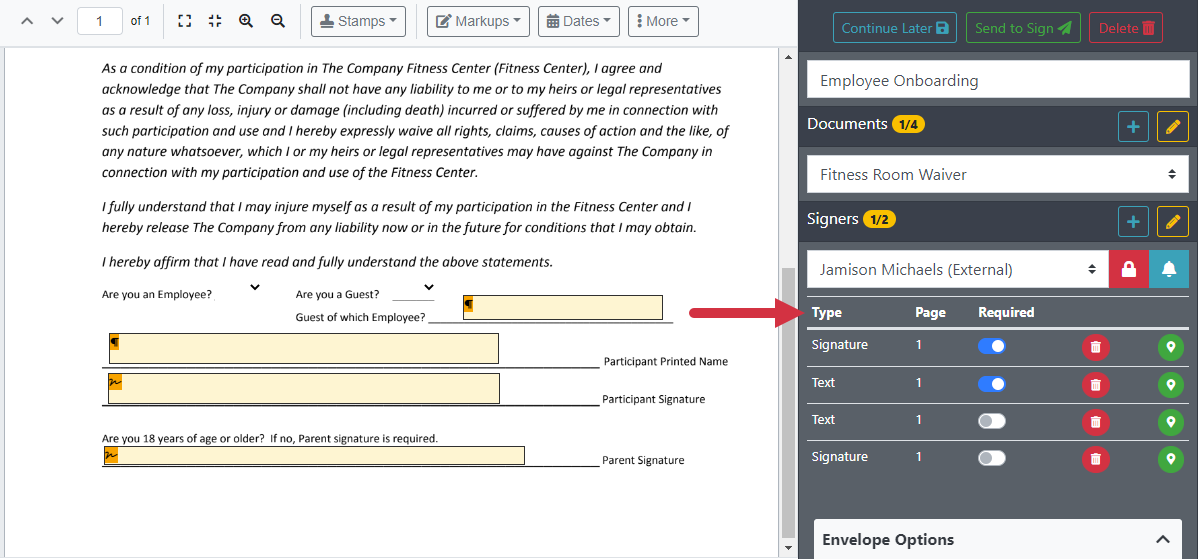
Each anchor is listed.
You can indicate if the anchor must be completed by the signer by turning the Required toggle on.
Click the red Delete icon to remove an anchor.
Quickly locate and move to an anchor by selecting the green Location icon.