Position Document Anchors
TrueSign can be enabled to allow auto anchors. These anchors are created by including specific replacement text in the PDF file before it is uploaded to TrueSign and added to an envelope. See Configure Auto Anchors.
Within Designer, you'll drop and drag anchors to the appropriate locations.
First, access Designer.
- Launch TrueSign. The Home page is displayed.
- Click the My Envelopes tab. Existing envelopes are listed.
- Locate the envelope to configure.
- Click the Design button.
The Designer interface is launched. The first document in the envelope is displayed in the Document Viewer.
- Scroll to the location where an anchor should be placed. Using a signature anchor to illustrate:
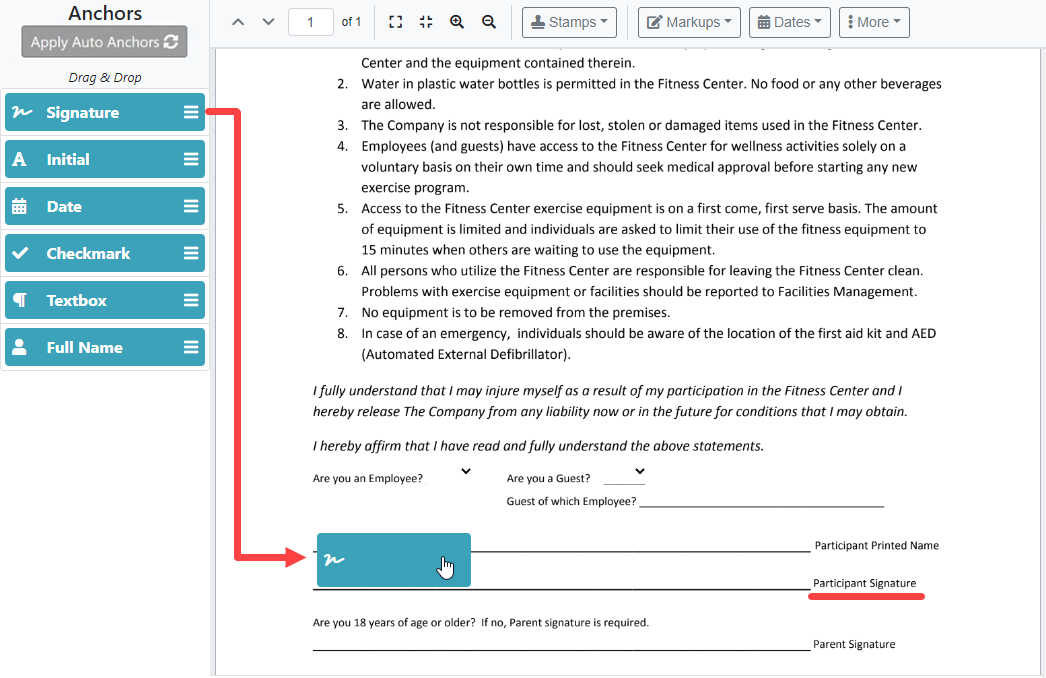
- Drag and drop an anchor in its required location. In the image above, a signature anchor is dragged to a signature location.
When you release, the anchor is placed on the document.
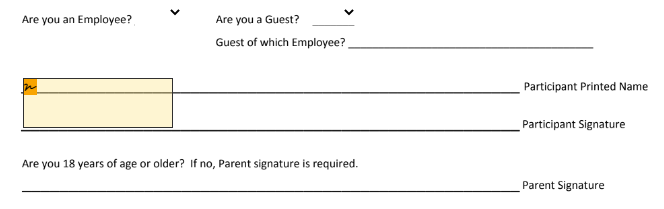
Be aware; the entire anchor space will be filled with the signature. As a result, you may wish to:
Resize the anchor....
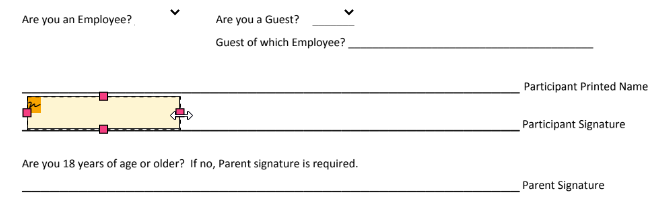
- Click the anchor; its appearance changes.
- Select and drag a sizing handle to resize.
OR
... move the anchor.
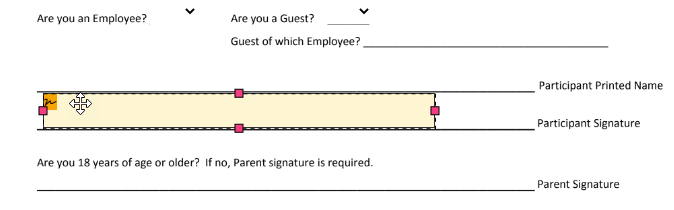
- Click the anchor.
- Hover your mouse over the anchor until the cursor displays as four arrowheads (shown above).
- Drag the anchor to its desired location and release.
Learn more