Apply Auto Anchors
If you don't apply the auto anchors through Designer, and the anchor strings haven't been processed, they will be processed when the envelope is sent.
If a TrueSign administrator has enabled auto anchors for the envelope type you're creating, you can apply all configured auto anchors to a document from within Designer with one click.
First, access Designer.
- Launch TrueSign. The Home page is displayed.
- Click the My Envelopes tab. Existing envelopes are listed.
- Locate the envelope to configure.
- Click the Design button.
The Designer interface is launched. The first document in the envelope is displayed in the Document Viewer.
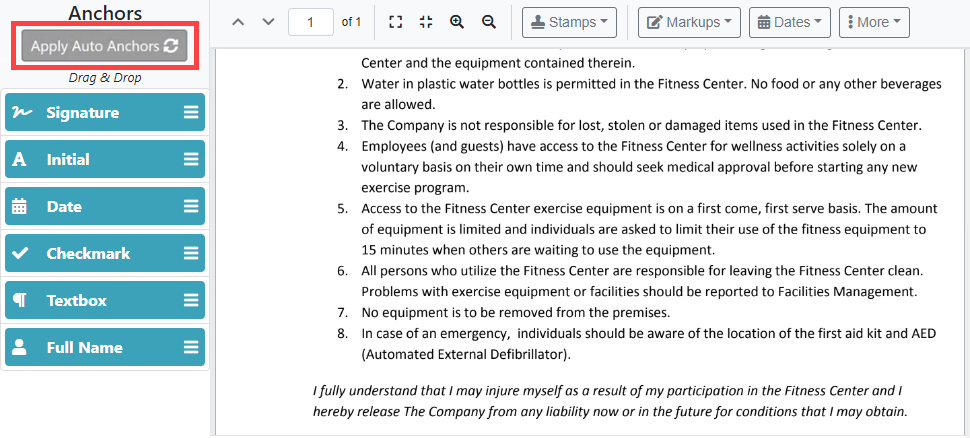
- Click Apply Auto Anchors.
TrueSign will search for any of the auto anchor configured text in the PDF document. Where any matches to the text are found, an anchor of the type indicated is placed in the position specified.
The search for and application of the anchor text is performed for each signer specified for the envelope.