Document Signer Permissions and Reminders
For each envelope signer, you can specify which signing features will be available to them in the Document Viewer.
First, access Designer.
- Launch TrueSign. The Home page is displayed.
- Click the My Envelopes tab. Existing envelopes are listed.
- Locate the envelope to configure.
- Click the Design button.
The Designer interface is launched. Signers are managed through the right sidebar.
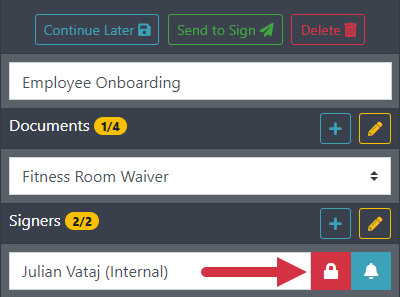
- Select the appropriate user from the Signers field drop-down list on the right sidebar.
- Click the Lock icon to access the Permissions dialog.
By default, all permissions listed on this dialog are enabled (no checkmarks selected).
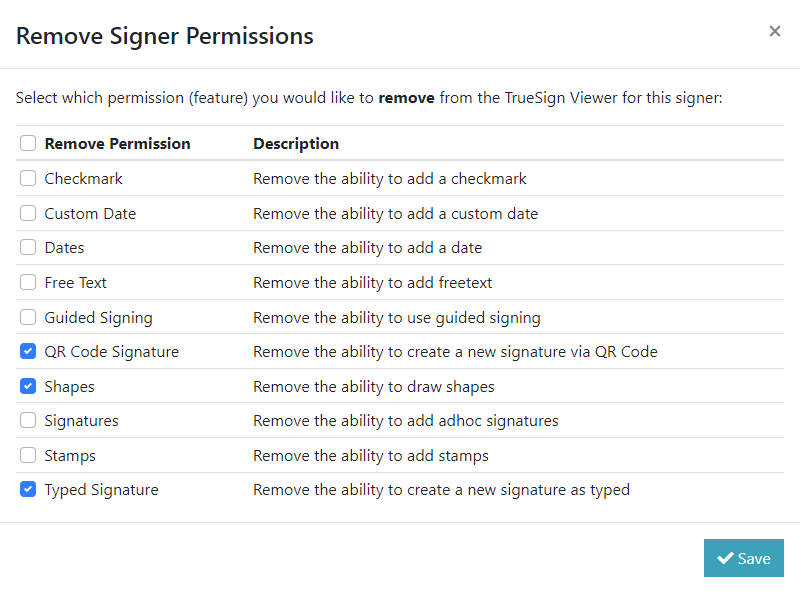
- Select permissions to remove for the signer.
- Click Save.
Create a Reminder for the Signer
For each envelope signer, you can indicate if a reminder should be sent to their email address regarding their need to sign envelope.
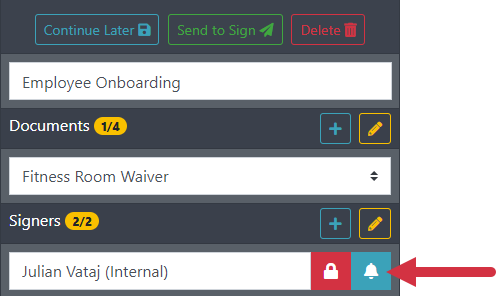
- Select the appropriate user from the Signers field drop-down list on the right sidebar.
- Click the Bell icon to access the Signer Reminders dialog.
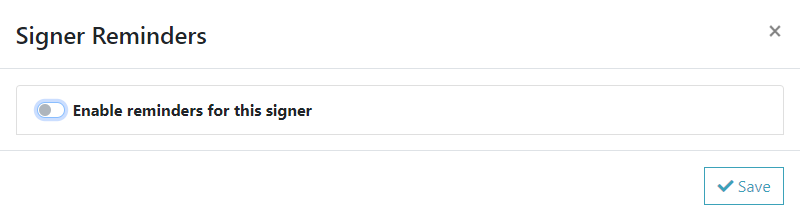
- Switch the toggle to enable a reminder.
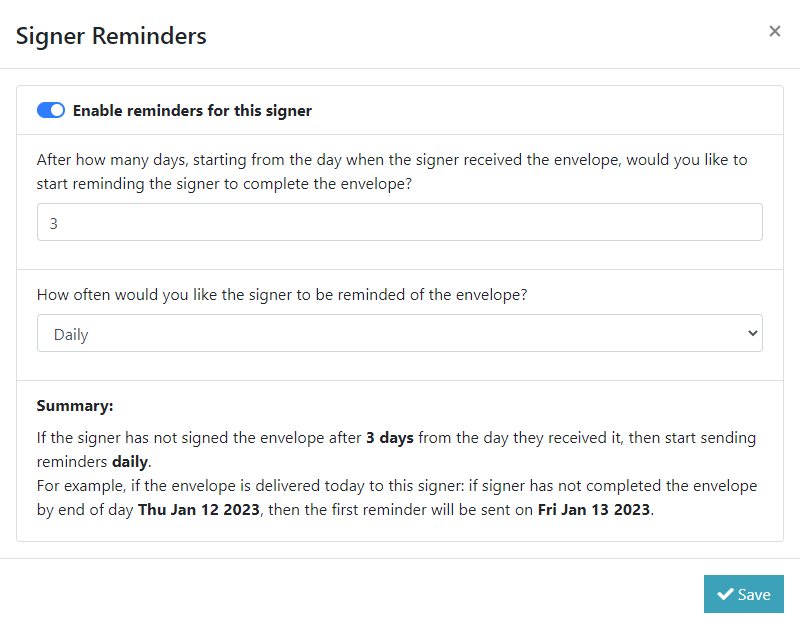
- Specify the number of days after the envelope's receipt that a reminder will first be sent to the signer if they haven't signed the envelope.
- Select the reminder frequency - daily or weekly.
- Click Save.