Configure the Envelope Documents
You can add one or more documents to an existing envelope. You can also remove, rename, and re-order the documents in the envelope.
First, access Designer.
- Launch TrueSign. The Home page is displayed.
- Click the My Envelopes tab. Existing envelopes are listed.
- Locate the envelope to configure.
- Click the Design button.
The Designer interface is launched. Documents are managed through the right sidebar.
Add a Document
To add one or more documents to the envelope:
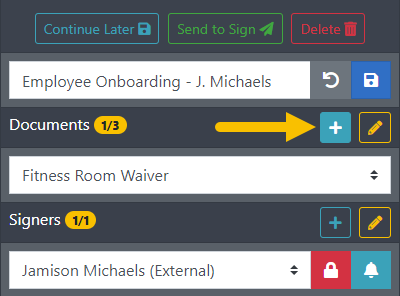
- Click the + icon in the Documents section.
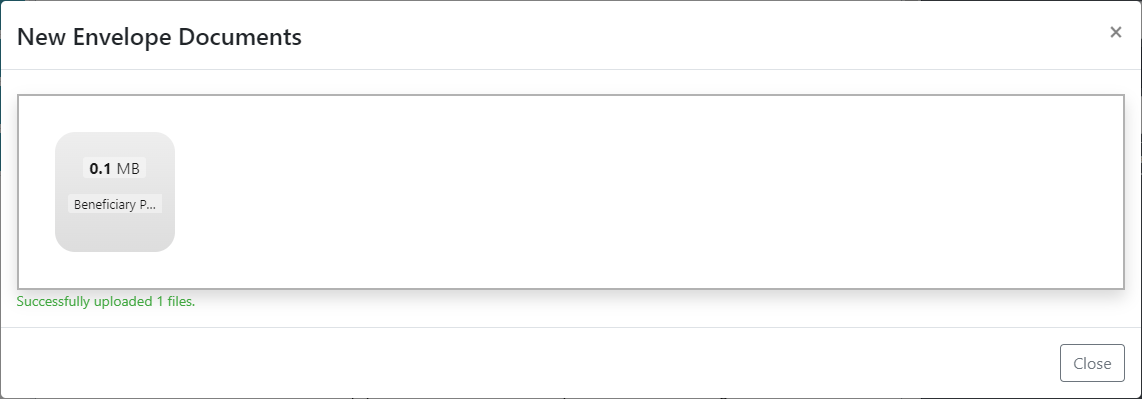
- In the New Envelope Documents dialog, select the documents to add to the envelope. You can:
Drag and drop the files in the Import bar.
OR
Click the Import bar, then navigate to and select the files in the dialog presented.
- Once the file is successfully uploaded, click Close.
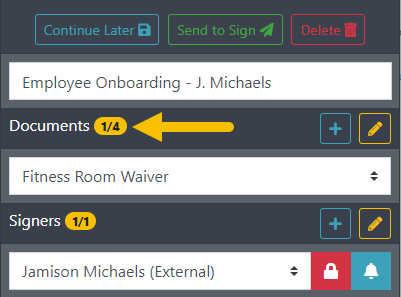
The document is added to the envelope.
Edit the Envelope Documents
You can remove, rename, and re-order the documents in the envelope.
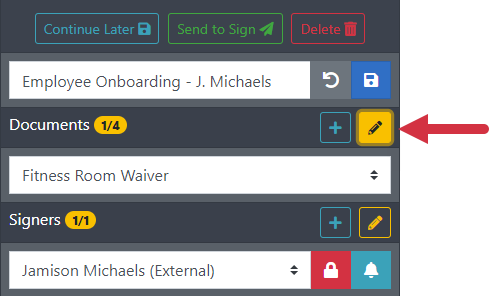
- Click the Edit icon in the Documents section. The Edit Envelope Documents dialog is launched.
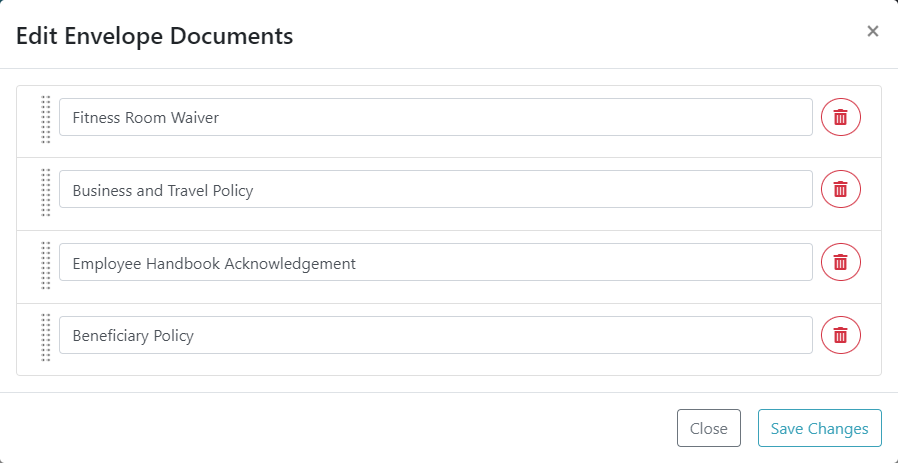
Remove a Document from the Envelope
IMPORTANT: Once the deletion is confirmed, the document is immediately removed from the envelope. This operation is not reversible.
- On the Edit Envelope Documents dialog, locate the document to remove.
- Click the Delete icon.
- Click the Delete button in the confirmation pop-up.
Re-order the envelope documents
Changing the order of the envelope documents impacts the order in which the documents are presented to the signer.
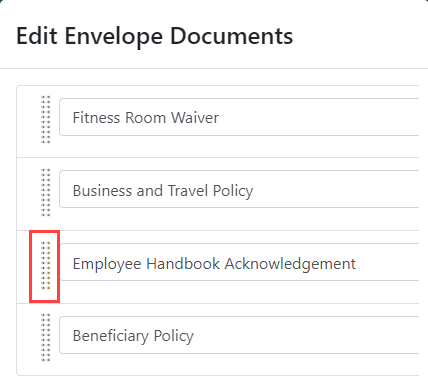
- On the Edit Envelope Documents dialog, locate the appropriate document.
- Click and hold the document's sorting handle (stacked dots).
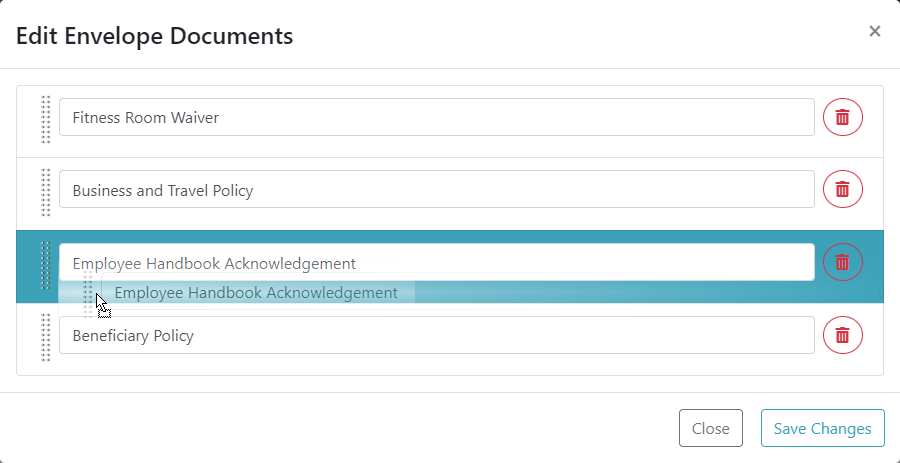
- Drag the document to the desired location and release.
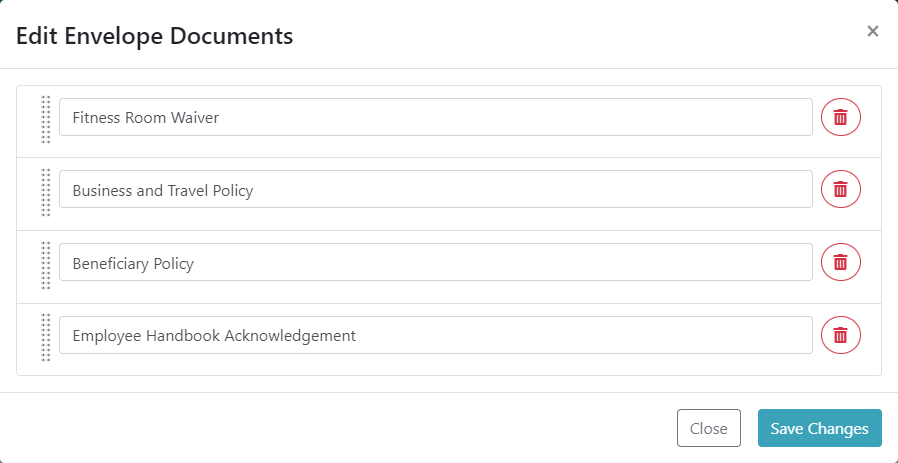
- Click Save Changes.
Rename the Documents
To rename the document:
- On the Edit Envelope Documents dialog, locate the appropriate document.
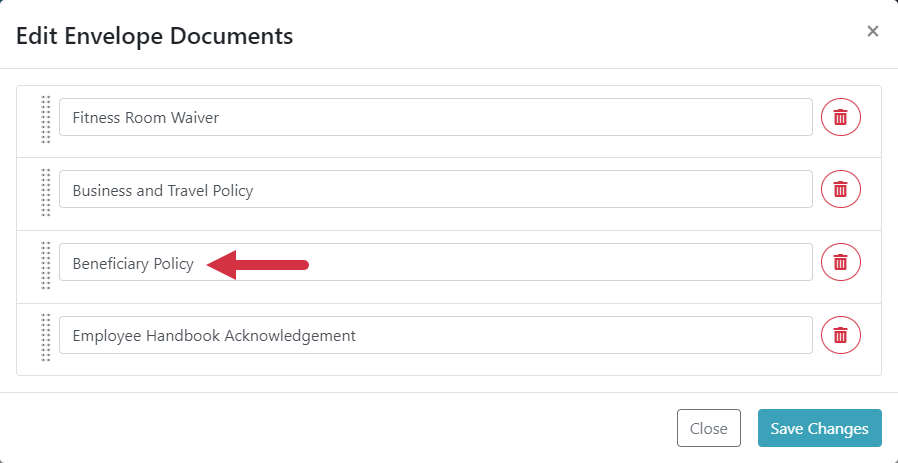
- Input the correct document title.
- Click Save Changes.