Manage the Document Signers
You can add an envelope signer, edit an external signer, and remove a signer.
First, access Designer.
- Launch TrueSign. The Home page is displayed.
- Click the My Envelopes tab. Existing envelopes are listed.
- Locate the envelope to configure.
- Click the Design button.
The Designer interface is launched. Signers are managed through the right sidebar.
Add a Signer

- In Designer, click the + icon in the Signers section of the right sidebar.
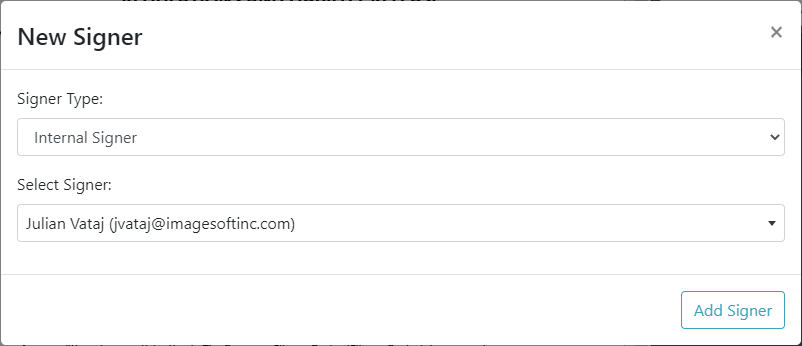
- Select the Signer Type and Signer. You can specify an:
Internal Signer - someone in your organization that has a TrueSign account. If this type is specified, you'll select the signer from the Select Signer field drop-down list. This list is populated with all TrueSign users in your organization.
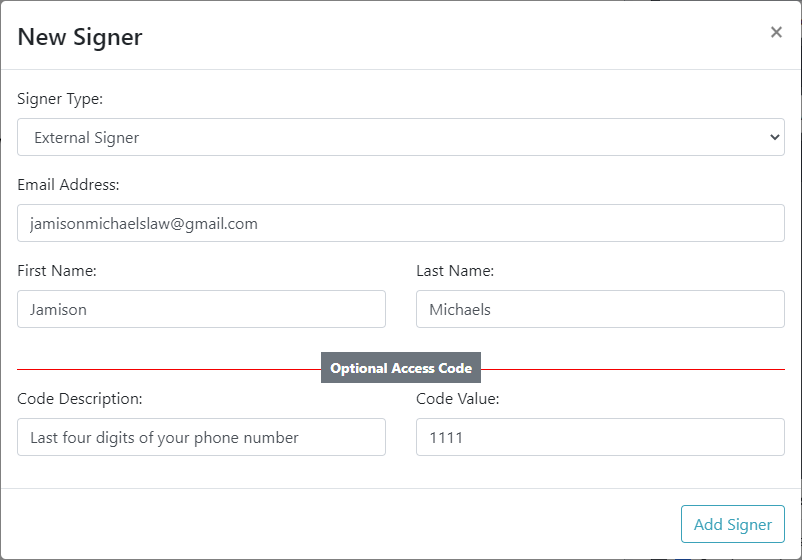
External Signer - someone outside your organization that may or may not have a TrueSign account. If you specify this type, the dialog displays as shown above, and you will:
- Input the signer's contact information.
To enhance security, you can require the signer to provide additional information only they would know - such as part of their phone number. This is optional.
- Input a description of what code will be required. In the above image, we indicated the last four digits of the signer's phone number.
- Input the Code Value.
- Click Add Signer.
The Signer is added.

Edit a Signer
You can modify an external signer (change the signer / edit their email address) or remove them from the envelope. You can't edit an internal signer, but you can remove them.
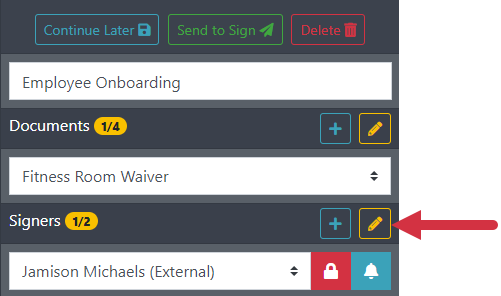
- Click the Edit icon in the Signers section of the right sidebar.
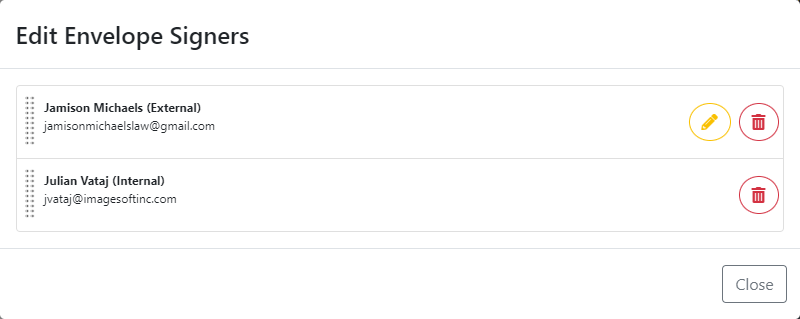
- To remove an internal or external signer, click the Delete icon.
- Click the Delete button on the confirmation pop-up. The signer is removed.
- Click Close to close the dialog.
To edit an external signer:
- Click the Edit icon on the Edit Envelope Signers dialog.
The Edit Signer dialog is displayed.
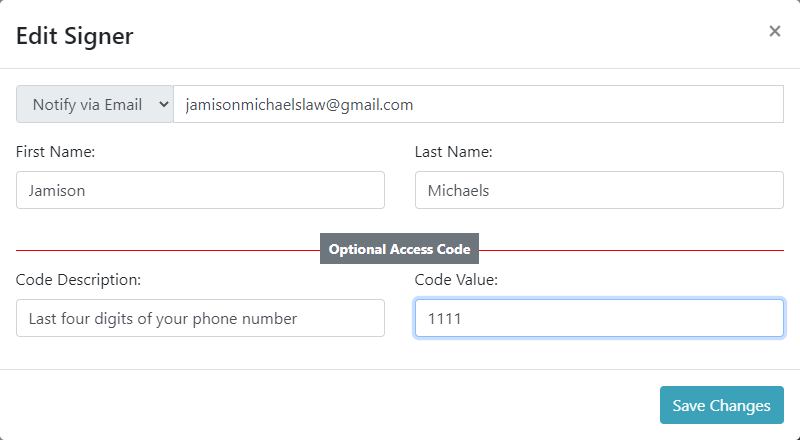
- Make any needed changes.
- Click Save Changes.
You can configure a signing reminder and set the signer's permissions with respect to the envelope.