Create an Envelope
To create an envelope from scratch, you'll first specify which documents to include in the envelope and also specify who will sign the envelope.
Once this basic information is specified, you'll configure the envelope.
- Launch TrueSign. The Home page is displayed.
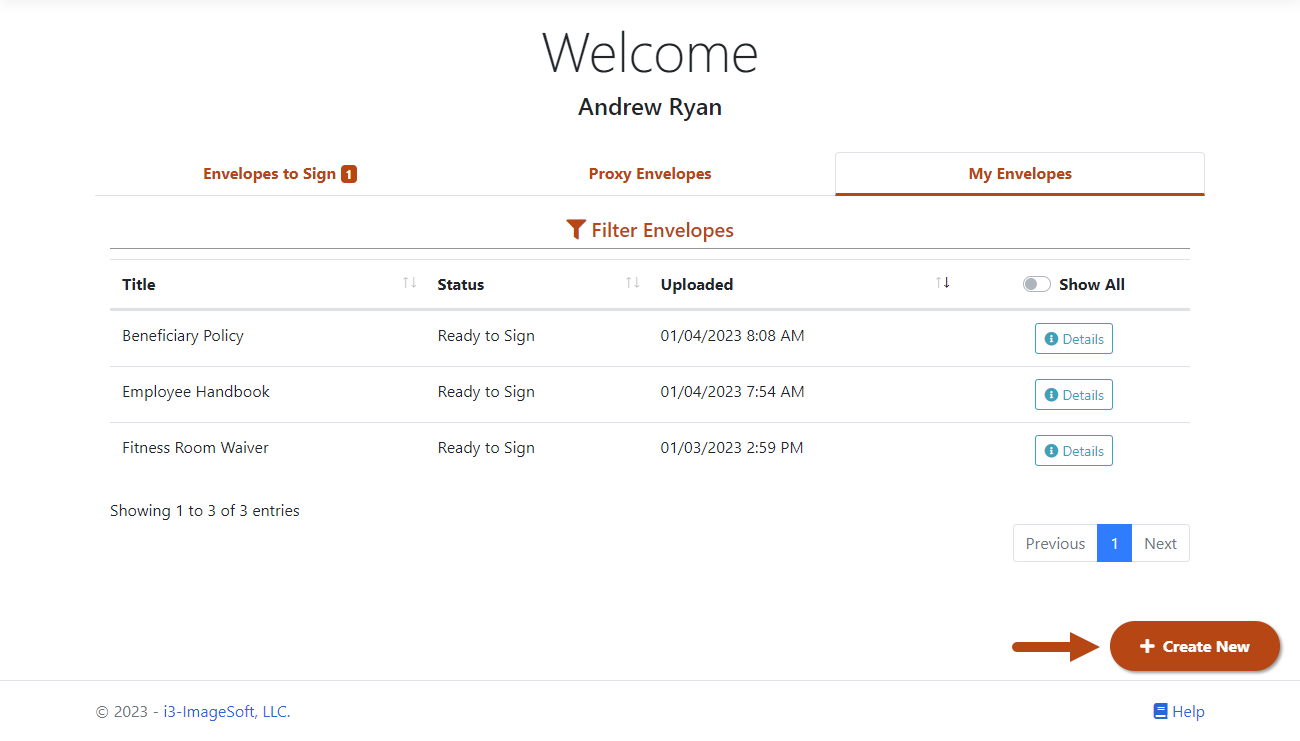
- Click the My Envelopes tab. Existing envelopes are listed.
- Click the Create New button.
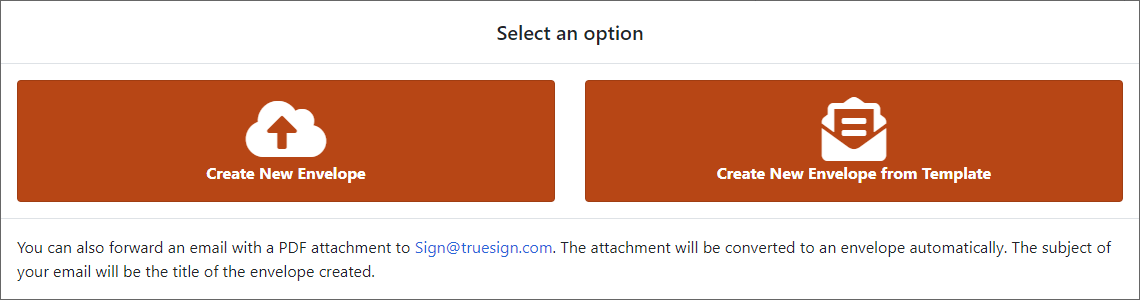
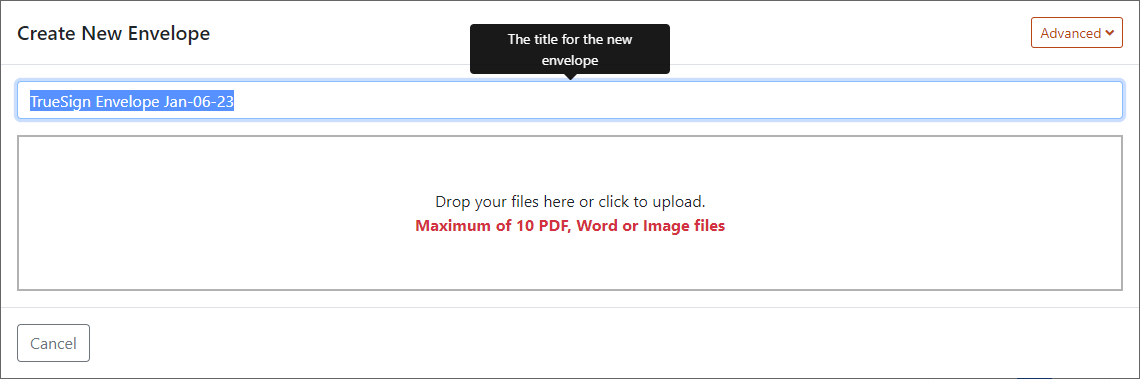
- Input the new envelope's title. You can change the title later, if needed.
- Select the documents to add to the envelope. You can:
Drag and drop the files in the Import bar.
OR
Click the Import bar, then navigate to and select the files in the dialog presented.
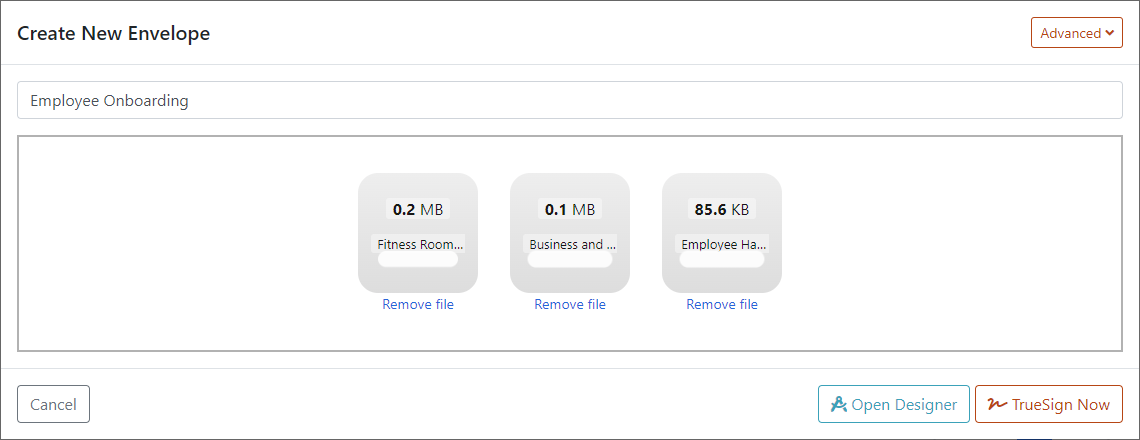
- Click Open Designer.
A dialog is displayed where you'll specify who will sign the documents in the envelope.
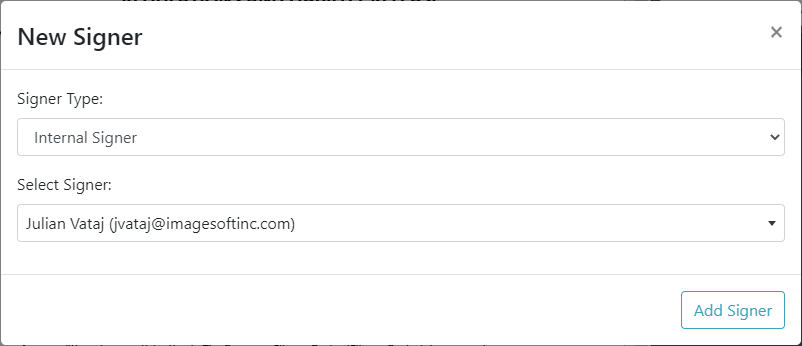
- Indicate the Signer Type. You can specify an:
Internal Signer - someone in your organization that has a TrueSign account. If this type is specified, you'll select the signer from the Select Signer field drop-down list. This list is populated with all TrueSign users in your organization.
External Signer - someone outside your organization that may or may not have a TrueSign account. If you specify this type, the dialog displays as:
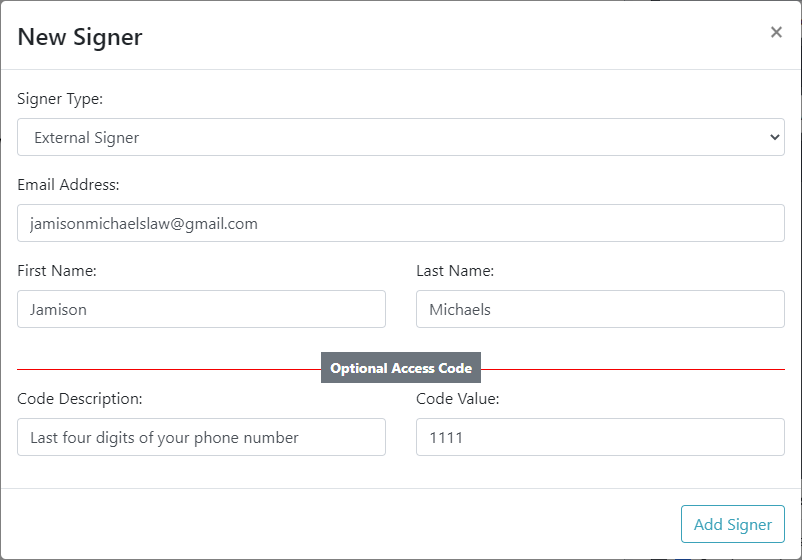
- Input the signer's contact information.
To enhance security, you can require the signer to provide additional information only they would know - such as part of their phone number. This is optional.
- Input a description of what code will be required. In the above image, we indicated the last four digits of the signer's phone number.
- Input the Code Value.
- Click Add Signer.
The Designer interface is launched.
See Configure the Envelope to learn how to continue the envelope's design.